🚀 Don't Miss This Important Resource!
Explore Our Advance Xcel Tools Free !Copying a formula down a whole column of a report is one of the most annoying things you can do in Excel. The process is not only boring, but it also gives you room for error if you don’t copy the formula to the right cells. What should you do if changing a formula gives you a result you didn’t expect? First, let’s look at ways to copy cells and keep the formula going down the column without having to change each cell.
Copying formulas into Excel
Once you’ve made an Excel formula, you can use the Copy and Paste commands to copy or move it to other parts of your page. If you don’t tell Excel otherwise, when you copy formulas that use cell references, the references move to the new position.
To keep things safe, you should know that when you move or copy a formula, a relative cell reference could change.
- Moving a formula: You can move a formula, but the cell references inside it don’t change. This is true no matter what kind of cell reference you use.
- Copying a formula: When you copy a formula, the cell references that point to the copied formula will change.
ALSO READ: How to Convert Excel to PDF
Move a formula
- STEP 1: Choose the cell where the formula you want to move is located.
- STEP 2: In the Clipboard group of the Home tab, select Cut.
- Alternatively, you can move formulas by dragging the cell’s edge to the upper left cell of the paste area. Whatever data is already there will be replaced by this.
- STEP 3: Select one of these options:
- In the Home tab’s Clipboard group, choose Paste to paste the formula and any formatting.
- In the Home tab’s Clipboard group, choose Paste, then Paste Special, and finally Formulas to only paste the formula.
Copy a formula
- STEP 1: Choose the cell that has the formula you want to copy.
- STEP 2: Choose Copy from the Clipboard group on the Home tab.
- STEP 3: Follow these steps:
- In the Clipboard group on the Home tab, click Paste to paste the formula and any formatting.
- Select Paste, then Select Special, and finally select Formulas in the Clipboard group of the Home tab to only paste the formula.
Note
The only thing you can paste is the formula results. On the Home tab, in the Clipboard group, choose Paste. Then, choose Paste Special. Finally, choose Values.
- STEP 4: Check that the formula’s cell references give you the outcome you desire. Change the type of reference if you need to by doing these steps:
- STEP 5: Pick out the cell where the formula is.
- Choose the reference you want to change in the formula bar button image.
- To change between the sets, press F4.
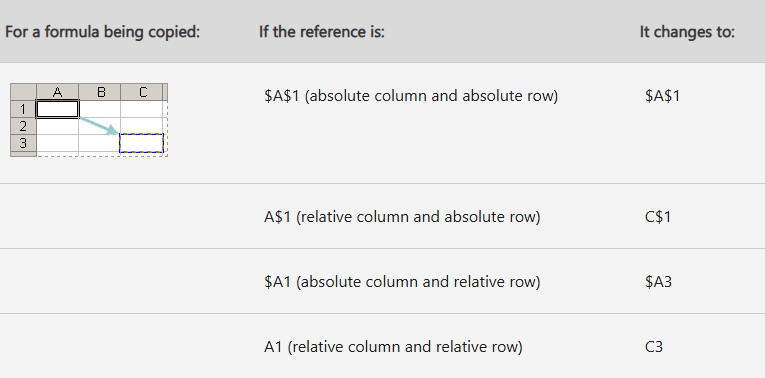
- If a formula with a reference is copied two cells down and two cells to the right, the table shows how the reference type will change.
Note
You can also copy formulas into adjacent cells by using the fill handle  . After verifying that the cell references in the formula produce the result that you want in step 4, select the cell that contains the copied formula, and then drag the fill handle over the range that you want to fill.
How to Copy a Formula Across Multiple Rows in Excel?
Lets assume you have to figure out how much the goods will cost with 7% VAT added.
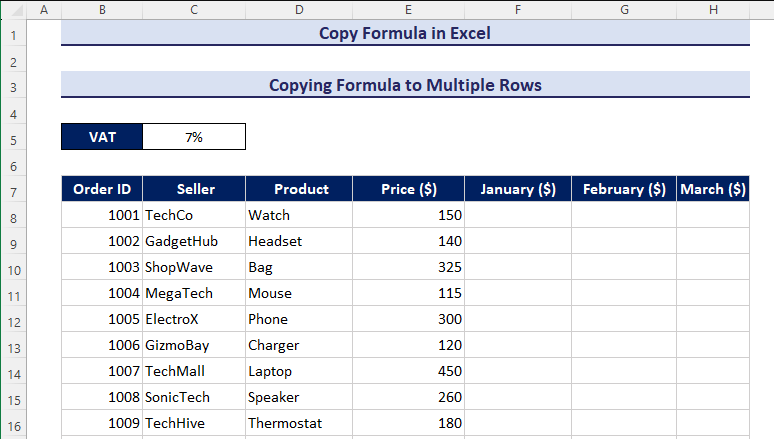
Enter the following formula in F8:
=E8*($C$5+1)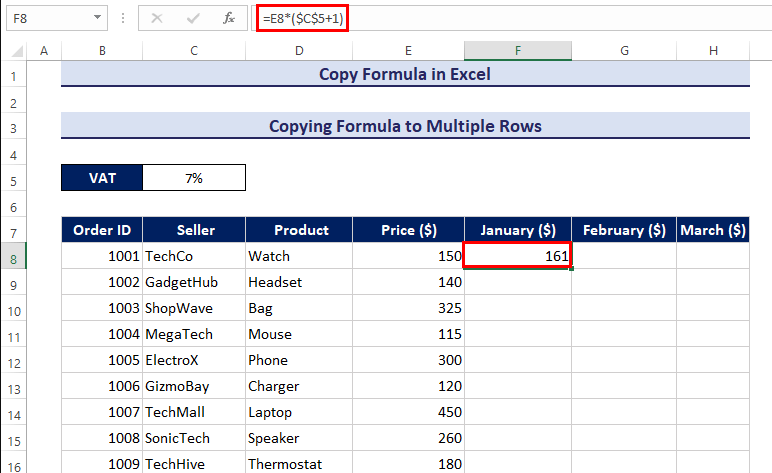
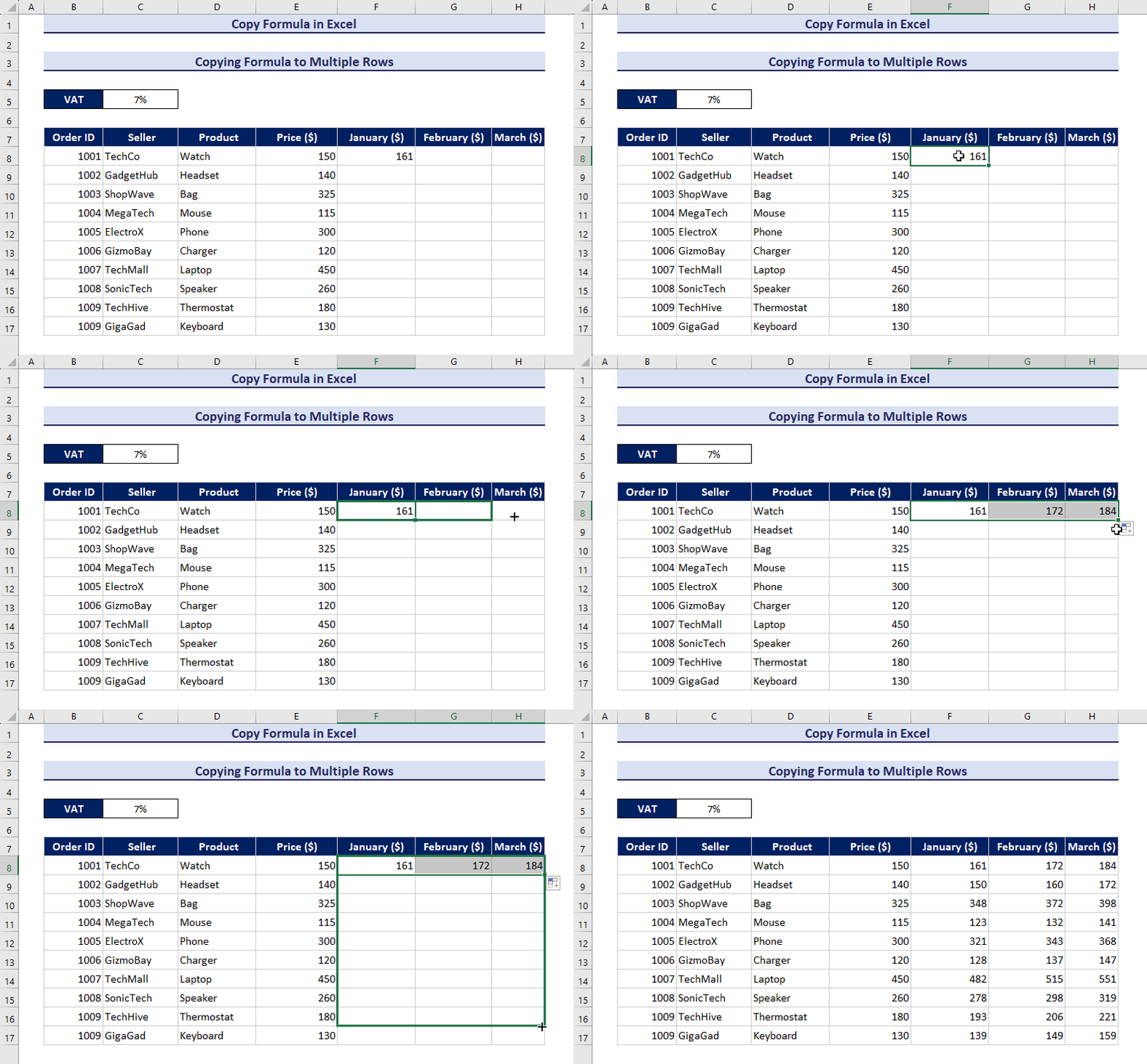
- The Fill Handle can be dragged down to see the change in other cells.
- The formula is pasted into more than one row.
Copy a Formula in Excel to Another Sheet in a Different Workbook
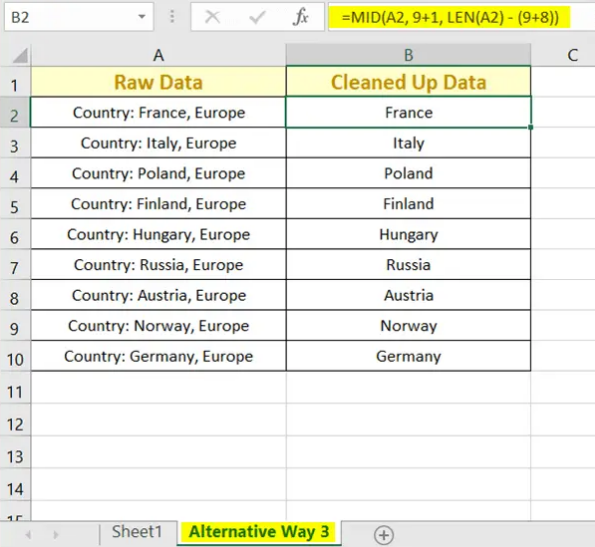
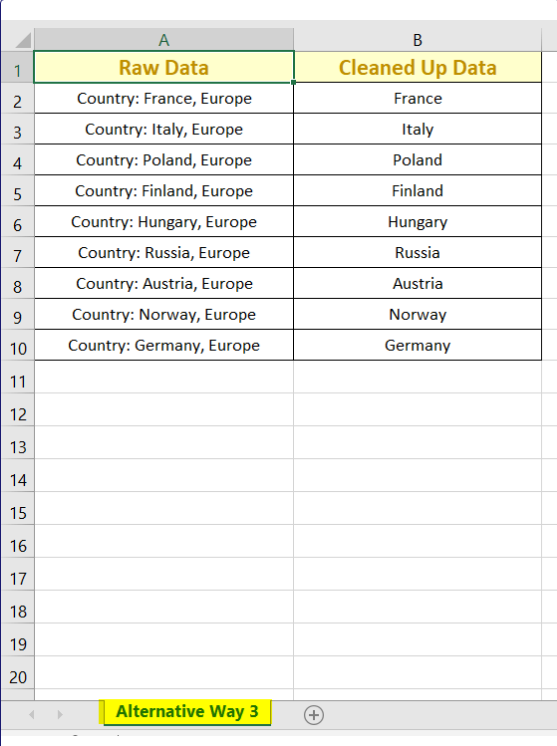
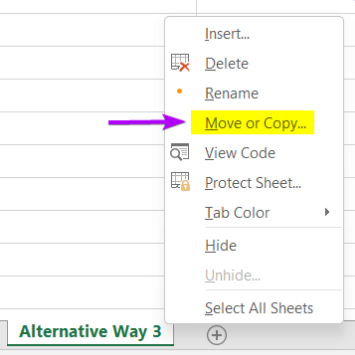
Let’s assume you want to move a formula from Book1 in Alternative Way 3 to Sheet1 in Book4.xlsx. The steps to do that are listed below:
- Step 1: Place your cursor on the name of the sheet you want to copy the formula from and right-click on it.
- Step 2: Now Click on the Move or Copy option.
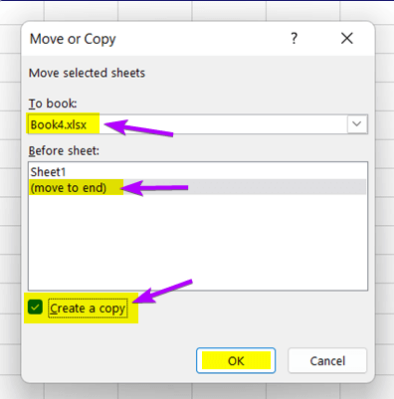
- Step 3: From the drop-down menu next to “To Book,” change the name of the workbook.
- Step 4: Book4.xlsx is the Excel file I want to use.
- Step 4: In the “Before Sheet” section, choose “Move to End.”
- Step 5: Put a check mark in the box that says “Make a Copy.”
- Step 6: Press the OK button.
You can find the Alternative Way 3 sheet in Book4.xlsx. The formulas are still there.