🚀 Don't Miss This Important Resource!
Explore Our Advance Xcel Tools Free !In Excel, Macros let you automate boring jobs and get better results, but you need to make sure they’re enabled correctly before you can use them. It’s important to know the right way to enable Excel macros, whether you’re working on a single project or using them across multiple files.
💡 Ready to test your Excel knowledge?
In this article, you’ll learn how to enable macros for a single workbook, adjust macro security settings to allow macros across all Excel documents, and create trusted locations to skip repeated security prompts.
We’ll also explain how to enable macros in Excel on Mac, so no matter your device or setup, you can start enabling Excel macros with confidence and control.
What Are Macros, and How Do They Work?
Macros in Excel are sequences of instructions that automate repetitive work. They can be recorded using Excel’s built-in Macro Recorder or written directly in VBA (Visual Basic for Applications).
When you know how to enable macros in Excel, you can automate tasks such as data entry, formatting, and generating complex reports. For example, a recorded macro can transform an entire spreadsheet in seconds, while a VBA macro can pull data from multiple sources efficiently.
Main Types of Macros
Generally there are two types of Macros in Excel:
| Macro Type | Method | Use Case Example |
|---|---|---|
| Recorded Macro | Macro Recorder | Repetitive formatting |
| VBA Macro | Custom Coding | Automated data import |
ALSO READ: How to Subtract in Excel
🔧 How to Enable Macros in Excel
Enabling Macros for a Single Workbook
- Open the workbook that has macros.
- You will see a yellow security warning; click “Enable Content” to allow macros temporarily.
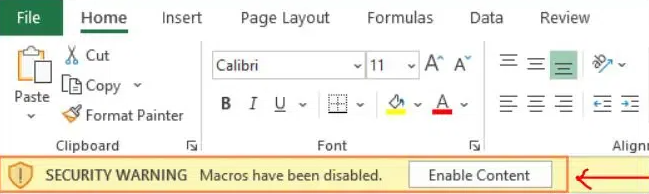
This technique is perfect if you want to know how to turn on macros in Excel for only one report or template, without affecting global macro security settings.
Note:
- The macros will only be active for this session.
- If you close and reopen the worksheet, macros will be disabled again unless you change permanent security settings.
Enabling Macros for All Workbooks
Enabling macros for all workbooks allows any Excel file you open to run its macros without prompts, which can be useful in controlled environments but risky in other situations.
- Open Excel (no file required).
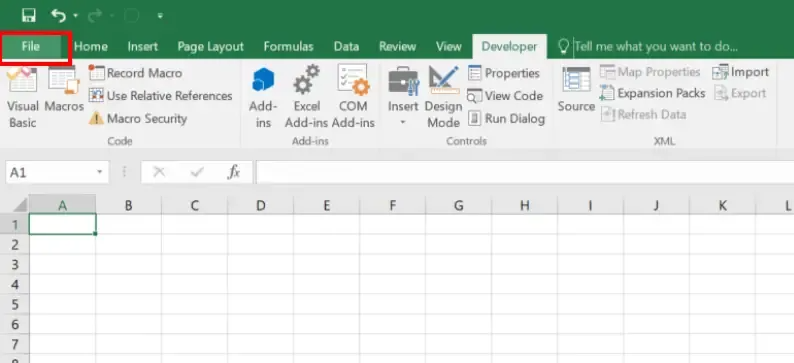
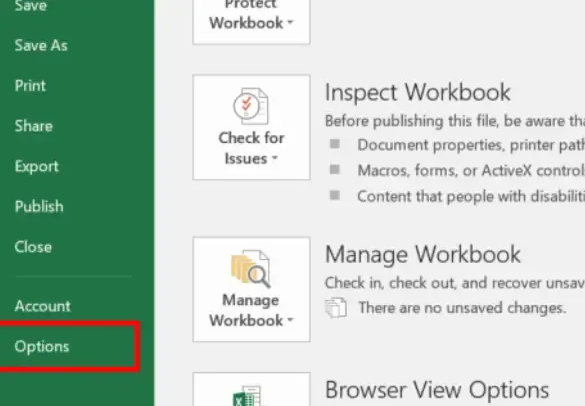
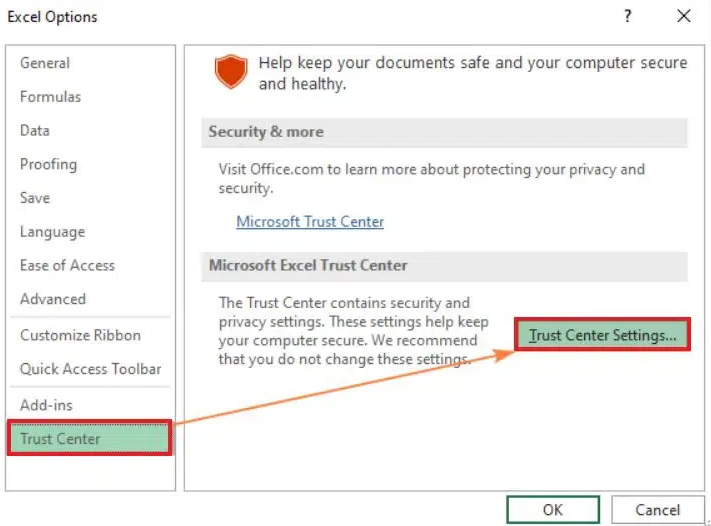
- Then Go to File > Options > Trust Center > Trust Center Settings.
- Under Macro Settings, select one of these:
- Disable all macros with notification
- Enable all macros
- Disable all macros except digitally signed macros
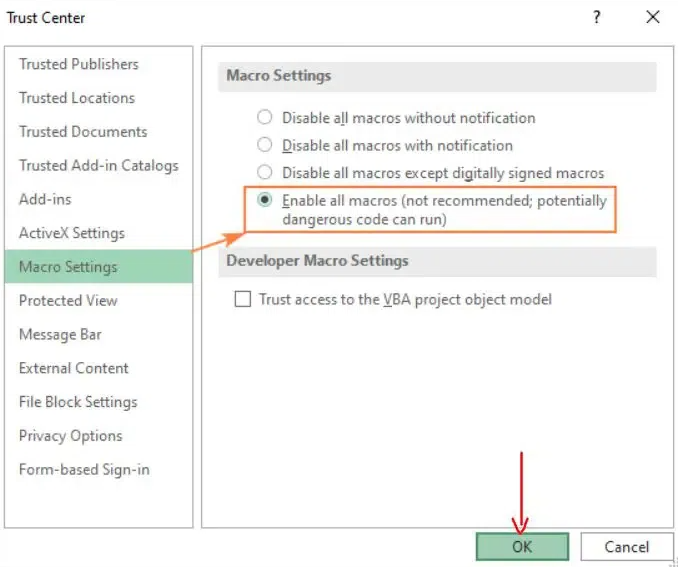
You will now see several macro security options. To allow all macros by default, select Enable all macros (not recommended: potentially dangerous code may run). This option allows any macro in any Excel file to run automatically without confirmation prompts, which can pose security risks if used carelessly.
(Optional) Add reliable locations:
- In Trust Center Settings, choose Trusted Locations.
- Click Add new place and choose a safe folder for macro-enabled files.
How to Enable Macros in Excel on Mac
To enable macros in Excel on Mac, simply follow these steps:
- Step 1: Open Excel workbook
- Step 2: Then go to Excel > Preferences > Security & Privacy.
- Step 3: Find Enable Macros.
- Step 3: Restart Excel if the display prompts you to.
Troubleshooting: Macros Not Working After Enabling
Sometimes, macros still fail to work even after you follow instructions on how to enable macros in Excel. Common explanations include:
- The file is not in a trusted place.
- The macro is banned owing to its origin (e.g., downloaded from the internet).
- The file is corrupted or contains missing code.
To fix problems, right-click the file in Windows Explorer, choose “Properties,” and click “Unblock” if required. Review the macro code for mistakes. For more details, go to the Excel troubleshooting reference.
ALSO READ: How to Pin a Row in Excel
⚠️ Troubleshooting Common Issues
- Macros won’t run: Ensure the file type supports macros (e.g., .xlsm or .xlsb) and that macros are enabled in the Trust Center.
- Repeated security warnings: Include the file’s folder in Trusted Locations.
- Macros are disabled in shared workbooks: to enable macro capability, go to a normal workbook.
FAQ: How to Enable Macros in Excel
1. Why is the “Enable Content” button not available?
- The file may already be in a trusted place so that macros are enabled automatically.
- System policies may have blocked the macro from getting executed. Discuss with your IT administrator.
2. Why Do Macros Still Get Disabled After Enabling?
Make sure the worksheet is saved as a macro-enabled workbook (.xlsm).
Check to see whether macros are disabled by group policy or antivirus software.
3. Can I enable macros on a temporary basis?
Yes, macros may be enabled for a single session by choosing Enable Content under the Security Warning banner.
💡 Ready to test your Excel knowledge?