XcelNoteXcelNote
  • MS Excel Intro
  • Tips & Tricks
  • Tutorial
  • Excel Formulas
  • Excel Shortcut
Reading: How to Force Quit Excel on Windows
Share
Notification Show More
Font ResizerAa
XcelNoteXcelNote
Font ResizerAa
  • MS Excel Intro
  • Tips & Tricks
  • Tutorial
  • Excel Formulas
  • Excel Shortcut
Search
  • MS Excel Intro
  • Tips & Tricks
  • Tutorial
  • Excel Formulas
  • Excel Shortcut
Follow US
Copyright © 2014-2023 Ruby Theme Ltd. All Rights Reserved.
XcelNote > Blog > Tutorial > How to Force Quit Excel on Windows
Tutorial

How to Force Quit Excel on Windows

Mithlesh By Mithlesh Last updated: March 31, 2025 2 Min Read
How to Force Quit Excel on Windows
SHARE

Sometimes, Microsoft Excel may Stop responding or Freeze, making it impossible to close normally. In such cases, you can force quit Excel using different methods. Here’s an easy and safe way to do it on a Windows computer.

Contents
Method 1: Use Task ManagerMethod 2: Use Alt + F4 ShortcutMethod 3: Use Command Prompt (CMD)Method 4: Restart Your ComputerFinal Thoughts

Method 1: Use Task Manager

The most basic way to force close Excel is using Task Manager.

  1. To open Task Manager, press Ctrl + Shift + Esc.
  2. Locate Microsoft Excel under the Processes tab.
  3. Right-click it and choose End Task.
  4. Excel will close instantly.
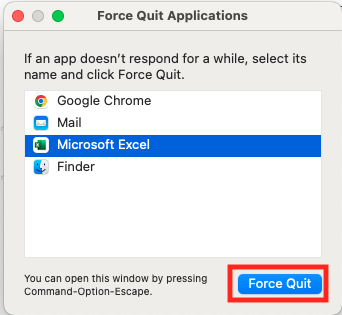
Force Quit Excel on Windows

ALSO READ: How to Auto-Adjust Cell Width and Height in Excel

Method 2: Use Alt + F4 Shortcut

  1. Click anywhere in the Excel window.
  2. Press Alt + F4 on your keyboard.
  3. If Excel responds, it will close; otherwise, use Task Manager.

Method 3: Use Command Prompt (CMD)

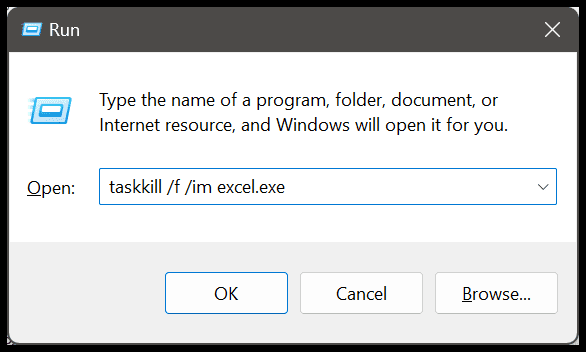
  1. Press Win + R, type cmd, and hit Enter.

2. Type the following command and click Enter.

Taskkill /f /im Excel.exe
Force Quit Excel on Windows

3. This will force Excel to shut down.

Method 4: Restart Your Computer

If Excel is still unresponsive, rebooting your computer will shut down all running applications and free up system memory.

Final Thoughts

Force quitting Excel should be used as a last option to avoid data loss. Always try to save your work before closing, and use AutoSave or backup copies to avoid data loss in the future. If Excel crashes regularly, updating or repairing it may help.

TAGGED:Close Frozen ExcelExcel tips and tricksForce Quit ExcelMs Excel
Share This Article
Facebook Twitter Copy Link Print
Share
Previous Article How to Auto-Adjust Cell Width and Height in Excel How to Auto-Adjust Cell Width and Height in Excel
Next Article MS Excel (Microsoft Excel) – A Complete Guide MS Excel (Microsoft Excel) – A Complete Guide
FacebookLike
TwitterFollow
InstagramFollow
YoutubeSubscribe
Most Popular
how to enable macros in Excel
How to Enable Macros in Excel
January 5, 2026
How to subtract in Excel
How to Subtract in Excel
December 27, 2025
How to pin a row in Excel
How to Pin a Row in Excel
December 27, 2025
XLOOKUP
How to Use XLOOKUP in Excel: Step-By-Step + Examples (2026)
December 23, 2025
Excel VBA: A Beginner’s Guide to Automating Tasks and Saving Time
VBA Excel: A Beginner’s Guide to Automating Tasks and Saving Time
December 23, 2025

You Might Also Like

Percentage Formula in Excel: 3 Ideal Methods
Tips & TricksTutorial

Percentage Formula in Excel: 3 Ideal Methods

5 Min Read
How to Recover Unsaved Excel File
MS ExcelTutorial

How to Recover Unsaved Excel File

5 Min Read
How to Create a Line Chart in Excel
Tips & TricksTutorial

How to Create a Line Chart in Excel

3 Min Read
How to Make a Pie Chart in Excel
Tips & TricksTutorial

How to Make a Pie Chart in Excel

5 Min Read
XcelNote

“Unlock the Power of Excel: Your Ultimate Tutorial Hub” is your go-to destination for mastering Microsoft Excel. 

Quick links

  • Disclaimer
  • About Us
  • Contact Us
  • Privacy Policy
  • Terms and Conditions
Go to mobile version
Welcome Back!

Sign in to your account


Lost your password?