There’s no SUBTRACT function in Excel. However, there are various methods to subtract numerical values in Excel.
💡 Ready to test your Excel knowledge?
🚀 Don't Miss This Important Resource!
Explore Our Advance Xcel Tools Free !Microsoft Excel is one of the most commonly used tools for mathematical calculations, data analysis, and maintaining records. Whether you are managing finances, reviewing sales data, or calculating marks and scores, subtraction is one of the most common but important operations you will do in Excel.
Many people have probably gotten stuck at some point while trying to subtract in Excel, because Excel doesn’t have a dedicated SUBTRACT function.
But it doesn’t mean Excel can’t perform subtraction.
In this article you will learn how to do subtract in Excel step by step.
ALSO READ: How to Pin a Row in Excel
Here are some methods on How to Subtract in Excel
Using the Minus Operator (-) for Basic Subtraction
The most easy approach to subtract in Excel is by using the minus (-) operator. All mathematical operations in Excel start with an equal symbol (=). To subtract numbers directly, use the following format:
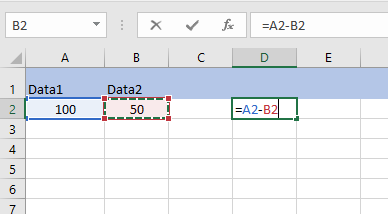
=100 - 50This will return 50. You may also subtract cell values using their references. For example, if cell A2 contains 100 and B2 contains 50, you may apply the formula:
=A2 – B2This process makes it easier to deal with dynamic data. If the value in A2 or B2 changes, the result updates immediately, ensuring you always receive the latest results.
Subtracting Multiple Cells in a Single Formula
In Excel, you can do multiple subtractions by chaining numerous values or cell references together. This is especially useful for analyzing spending, profit calculations, or performance reviews.
Example Formula:
=A2-B2-C2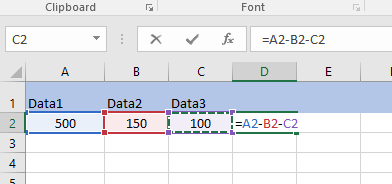
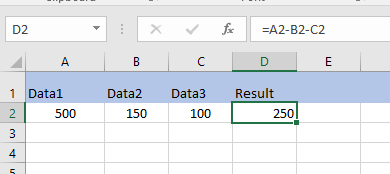
If A2 has 500, B2 keeps 150, and C2 keeps 100, the formula gives 250. This method ensures that you can manage many deductions in one calculation, reducing your workflow while dealing with complicated datasets.
Subtraction Using Dynamic Cell References
Dynamic cell referencing helps formulas to automatically update as data changes. This function is important for budgeting, financial modeling, and monitoring important data over time.
Example Use Case:
If you analyze monthly income in B2 and costs in A2, the formula to calculate net profit would be:
=B2 - A2This means that every time new values are input in A2 or B2, the formula reflects the updated profit.
How to Subtract a Constant Value from Multiple Cells
Sometimes you need to subtract the same value from multiple cells.
Method 1: Using a Formula
If you wish to subtract 10 from A2:
=A2-10Copy the formula to different cells as required.
Method 2: Using Paste Special
- Enter the number to subtract (e.g., 10) in an empty cell.
- Copy the cell.
- Select the range of values.
- Right-click → Paste Special.
- Choose Subtract.
- Then click OK.
This method permanently changes the values.
How to Subtract Percentages in Excel
Subtracting percentages is very commonly used in discounts, tax calculations, and performance comparisons.
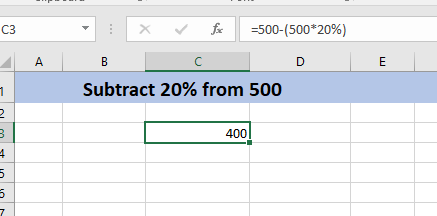
Example: Subtract 20% from 500
Formula:
=500-(500*20%)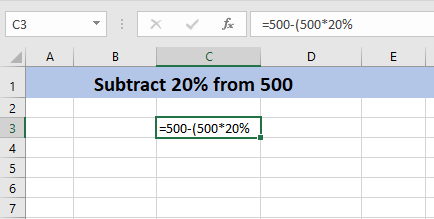
Result: 400
Using Cell References:
If A3 = 500 and B3 = 10%:
=A3-(A3*B3)How to Subtract Dates in Excel
Subtracting dates in Excel calculates the number of days between two events. Excel understands dates as serial numbers, so the process is simple.
Example Formula:
=B3-A3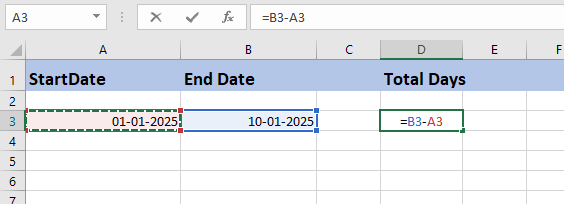
Result: 9 days
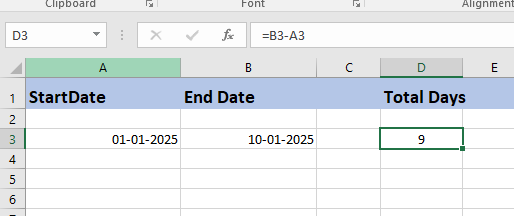
This is helpful for tracking project timelines, delivery times, and attendance.
For working days, use the NETWORKDAYS function:
=NETWORKDAYS(A3, B3)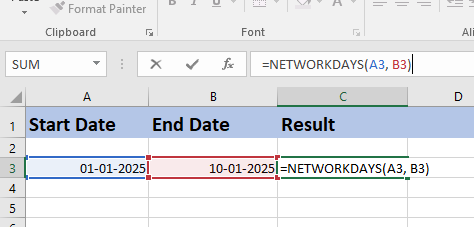
How to Subtract Time in Excel
You can also subtract time values in Excel:
Example
- Start Time: 9:00 AM
- End Time: 5:30 PM
Formula:
=EndTime-StartTime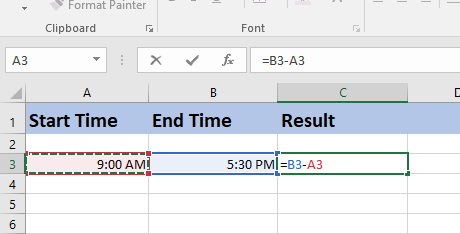
Format the result as Time or [h]:mm for avoiding errors.
ALSO READ: How to Use XLOOKUP in Excel: Step-By-Step + Examples (2026)
Final Thoughts
Subtraction in Excel is a basic skill used in almost every spreadsheet task. From simple calculations to complex financial tasks, knowing how to subtract correctly and efficiently allows you to work faster and avoid costly errors.
You can confidently handle real-world Excel tasks if you understand basic subtraction, cell references, percentages, dates, and advanced techniques such as absolute references. Whether you’re a beginner or looking to improve your Excel skills, subtraction is a concept you’ll use on a daily basis.
💡 Ready to test your Excel knowledge?