🚀 Don't Miss This Important Resource!
Explore Our Advance Xcel Tools Free !It’s very common to put a password on an Excel sheet and then forget the password, which can be very annoying.
💡 Ready to test your Excel knowledge?
Depending on how your Excel sheet is protected, forgetting the password can stop you from doing important tasks, such as changing cell data or adding or removing rows and columns.
In this guide, I will show you easy ways to unlock a sheet in Excel, whether you’re using Excel 2010 or the latest version, Excel 365.
What Does Unprotecting a Sheet Mean in Excel
Once you unprotect a sheet in Excel, you can edit or make changes to its content without any problems. When you unprotect a sheet, you give others full control over those features.
Protecting a sheet prevents others from editing cells, changing the format, or making structural changes.
When unprotecting an Excel sheet is needed:
- When you have to make changes to a protected sheet.
- When you’ve forgotten your password and want to get rid of the security.
- When you want to let people edit the workbook after you’ve shared it.
Here are Some Methods to unprotect Excel sheet:
Method 1: Unprotect Sheet Using the Built-In Option
This is one of the simplest way to unprotect the excel sheet by using the password.
STEPS:
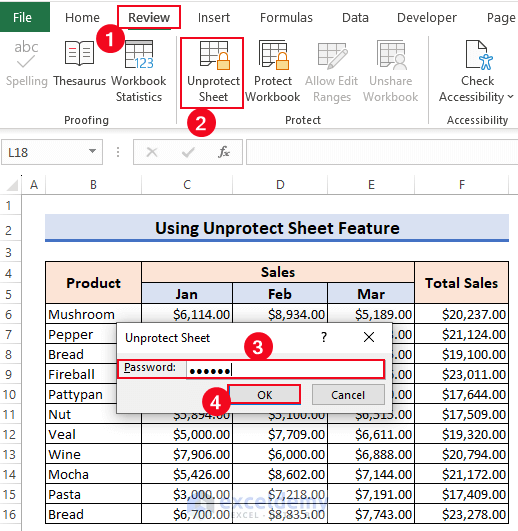
- First go to the Review tab and choose Unprotect Sheet from the list of Protect sheets.
- It shows up the Unprotect Sheet dialog box.
- Then type your password in password field and press Ok.
After clicking on Ok the Protected sheet will unlock automatically.
Note:
You can also Right click on your protected sheet (down) the Select "Unprotect sheet" and then type your password to unlock the Protected sheet. Below are image to understand: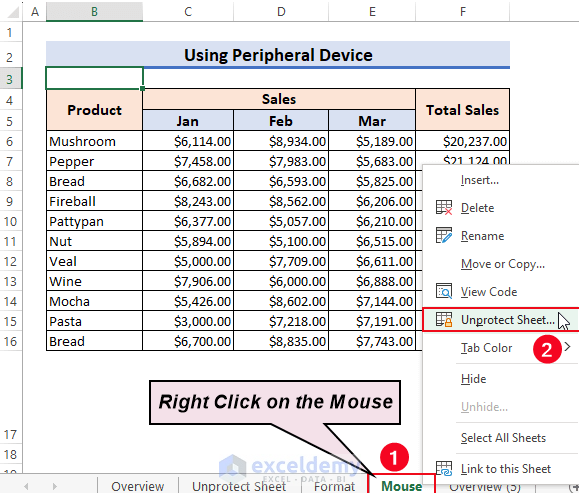
ALSO READ: XLOOKUP vs VLOOKUP: Differences Between VLOOKUP and XLOOKUP in Excel
Method 2: Unlock Excel Sheets Executing VBA Code (For Excel 2010 and Earlier Versions)
You can use VBA (Visual Basic for Applications) code to unlock a sheet in Excel 2010 or earlier versions. This method works even if you don’t know the password, making it a great alternative to other methods.
Here is a step-by-step guide on how to use VBA code to unlock a sheet:
Step 1: Open your Excel file.
Open your protected sheet that you want to unlock.
Step 2: Open Your VBA editor
- You can simply press ALT+F11 on your keyboard to open VBA editor.
- You can also go to the Developer Tab and Select Visual Basic to Open
Step 3: Insert a New Module
Go to the VBA editor and click on Insert. Then, choose Module from the menu. This will make a new module for you to insert your code in.
Step 5: Enter the following VBA code in the module.
Sub Passwordprotectedsheet()
'Breaks worksheet password protection.
    Dim i As Integer, j As Integer, k As Integer
    Dim l As Integer, m As Integer, n As Integer
    Dim i1 As Integer, i2 As Integer, i3 As Integer
    Dim i4 As Integer, i5 As Integer, i6 As Integer

    On Error Resume Next
    For i = 65 To 66: For j = 65 To 66: For k = 65 To 66
    For l = 65 To 66: For m = 65 To 66: For i1 = 65 To 66
    For i2 = 65 To 66: For i3 = 65 To 66: For i4 = 65 To 66
    For i5 = 65 To 66: For i6 = 65 To 66: For n = 32 To 126
         ActiveSheet.Unprotect Chr(i) & Chr(j) & Chr(k) & _
            Chr(l) & Chr(m) & Chr(i1) & Chr(i2) & Chr(i3) & _
            Chr(i4) & Chr(i5) & Chr(i6) & Chr(n)
         If ActiveSheet.ProtectContents = False Then
            MsgBox "Password is " & Chr(i) & Chr(j) & _
                Chr(k) & Chr(l) & Chr(m) & Chr(i1) & Chr(i2) & _
                Chr(i3) & Chr(i4) & Chr(i5) & Chr(i6) & Chr(n)
         	Exit Sub
         End If
    Next: Next: Next: Next: Next: Next
    Next: Next: Next: Next: Next: Next
End Sub
Step 5: Execute the Code
- Press F5 or click Run in the VBA editor to run the code.
- By trying different passwords, the macro will try to unlock the active sheet.
Step 6: Make sure the sheet is not protected.
If the code worked to unlock the sheet, you’ll see a message box with the password after the code runs. You will be told that the password could not be found if the code fails to find it.
Step 7: Save the Unlocked Workbook
Once your sheet is unprotected, save it to keep the changes.
Important Note:
- Excel versions before 2010: This method works for Excel versions before 2010. Because of stronger security, it might not work if you are using Excel 2013 or later.
- Strong Passwords: This method works for simple passwords, but if the password is strong, you may need more advanced methods or tools from a third party.
- Safety in VBA: When running VBA code, you should always be careful. Malicious code can damage your files or make your security less secure, so only use code from sources you know you can trust.
ALSO READ: How to Draw a Scatter Plot on Excel
Method 3: Unlock Excel Sheets by Uploading to Google Sheets
By changing the file format, you can also unlock a locked Excel sheet. Follow the steps below to get the file onto Google Sheets and remove the lock. Make sure that the protected Excel file is saved on your desktop before you start.
It’s possible that uploading to Google Sheets could cause problems, like when some Excel features (such as macros and cell locking) don’t work properly in Sheets and need to be fixed.
Step 1: First, open your Google Drive.
Sign in to Google Drive with your Google account.
Step 2: Upload your Excel file.
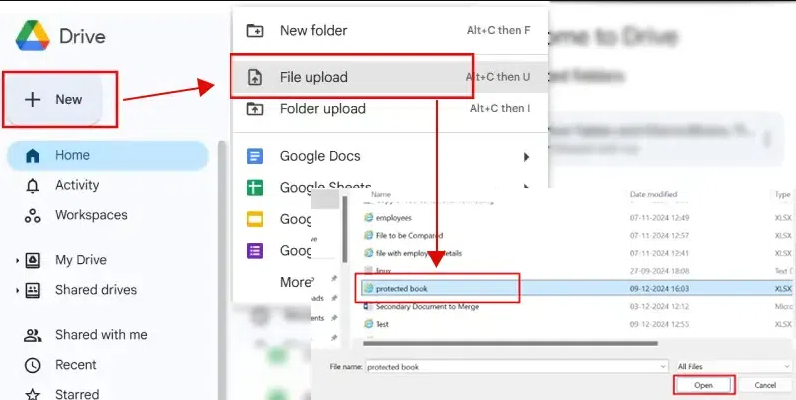
- Click the “New” button on the left side of Google Drive.
- Click “File upload” and pick the Excel file that you want to make public again.
- Wait until your file get uploaded
Step 3: Open your file in Google Sheets.
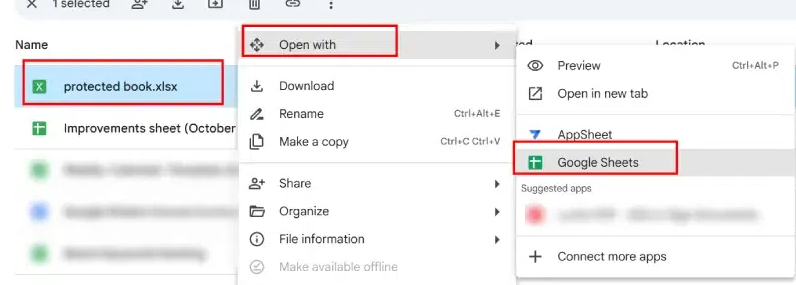
- Once your file gets uploaded, right-click on the file in Google Drive.
- Choose Google Sheets from the list when you click “Open with.” If you do this, the Excel file will open in Google Sheets.
Step 4: Check for the Protection
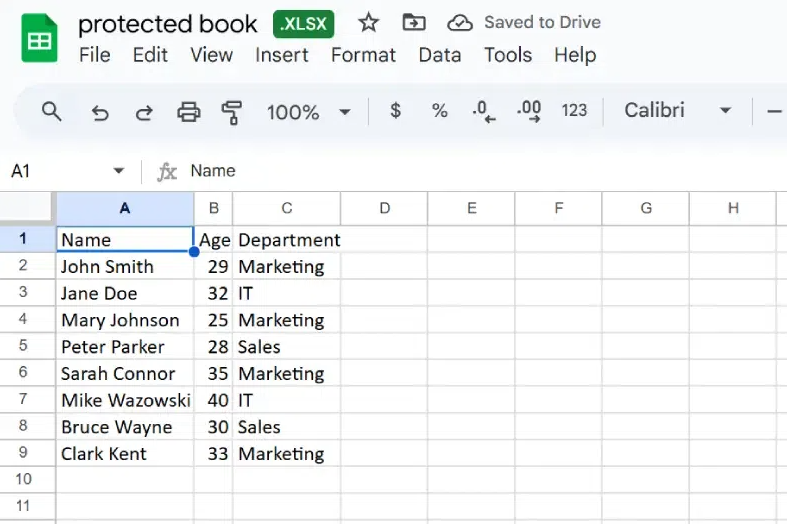
It’s possible to edit the sheet directly in Google Sheets if the protection in Excel was only based on the worksheet structure (for example, hiding columns or locking cells).
According to Google Sheets, if the Excel file was protected with a password, it might ask for the password or not allow access to all features.
Step 5: Remove Protection (if Required):
To see if Google Sheets has any restrictions, like hidden sheets or cells that can’t be changed, click on the Data tab in the menu and choose Protected sheets and ranges.
In the sidebar, click on the trash icon to remove the protection rules or change how they work.
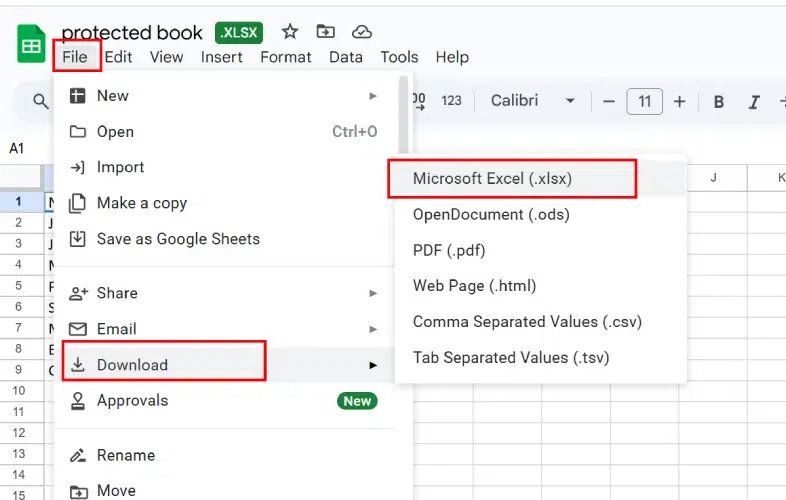
Step 6: Then Go to File > Download > Microsoft Excel
Final Thought
You may need to unprotect a sheet in Excel if you need to make changes to a shared file, update a protected document, or have forgotten your password. You can unprotect a sheet in a number of ways, such as by using Excel’s built-in tools, VBA code, or online services.
Each approach has its own pros and cons. If you know the password, using the Review tab or right-click may be enough to protect something simply with a password. But if you don’t know the password or the security is complicated, you may need to use other methods, such as uploading to Google Sheets, using online services, or using VBA code for older versions of Excel. These methods can get rid of protection, but you should still be careful with sensitive files and only use reliable tools.
If you know how to unprotect a sheet, you can make your workbooks more flexible and get back control of your Excel files when you need to.