🚀 Don't Miss This Important Resource!
Explore Our Advance Xcel Tools Free !IF is one of the most popular and useful functions in Excel. It tests a condition and returns one value if the condition is met, and another value if it is not.
In this tutorial, you’ll learn the syntax of the Excel IF function and explore real-world formula examples — from simple number checks to nested IFs, multiple conditions, date comparisons, and error handling.
What you'll learn: IF syntax and arguments, IF with numbers/text/dates/blanks, nested IF, AND/OR conditions, case-sensitive IF, IFERROR, and common mistakes to avoid.Excel IF Function — Syntax
The syntax of the IF function is:
=IF(logical_test, [value_if_true], [value_if_false])
| Argument | Required? | Description |
|---|---|---|
| logical_test | Required | The condition to evaluate — must return TRUE or FALSE. Usually uses a logical operator (>, <, =, <>, >=, <=). |
| value_if_true | Optional* | What to return if the condition is TRUE. If omitted, returns 0 (which is rarely useful). |
| value_if_false | Optional* | What to return if the condition is FALSE. If omitted, returns FALSE or 0 depending on syntax. |
* While the last two arguments are technically optional, always define both to avoid unexpected results.
Basic IF Formula in Excel
Let’s start with a simple example. The formula below checks if a score in B2 is greater than 80 and returns ‘Good’ if true, ‘Bad’ if false:
=IF(B2>80, "Good", "Bad")
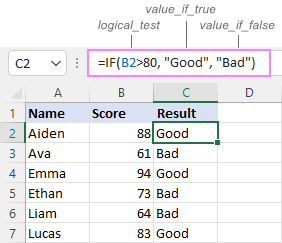
Basic IF formula: =IF(B2>80, “Good”, “Bad”) — returns “Good” for scores above 80, “Bad” otherwise
To return something only when the condition is met and leave the cell blank otherwise, use an empty string (“”) for the false argument:
=IF(B2>80, "Good", "")
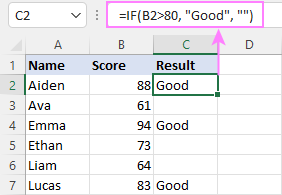
IF formula returning blank (“”) when condition is not met — cells for scores ≤80 appear empty
What Happens When You Omit the Arguments?
If value_if_true Is Omitted
If you skip the second argument (with two consecutive commas after the logical test), Excel returns 0 when the condition is TRUE — which is rarely what you want:
=IF(B2>80, , "Bad")    ← returns 0 for TRUE
=IF(B2>80, "", "Bad")  ← returns blank for TRUE (correct)
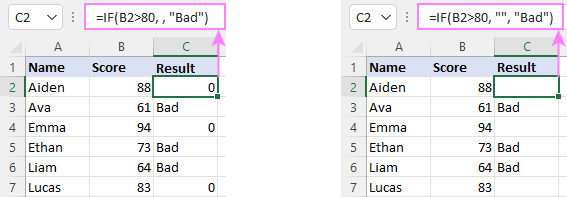
Comparison: omitting value_if_true returns 0 (left), using “” returns a blank cell (right)
If value_if_false Is Omitted
If you omit the third argument entirely, Excel returns FALSE when the condition fails. Adding a trailing comma instead returns 0 — also unhelpful. Use “” to return a blank:
=IF(B2>80, "Good")     ← returns FALSE when condition fails
=IF(B2>80, "Good",)    ← returns 0 when condition fails
=IF(B2>80, "Good", "") ← returns blank when condition fails (best practice)
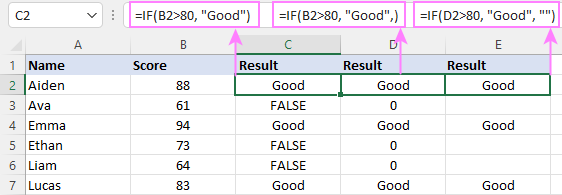
Three versions of omitting value_if_false — only the “” version gives a clean blank result
💡 Best Practice: Always define both value_if_true and value_if_false. Use “” (empty string) when you want the cell to appear blank for one of the outcomes.
Excel IF Function with Numbers
Use logical operators in the logical_test to compare numeric values:
| Operator | Meaning |
|---|---|
| = | Equal to |
| <> | Not equal to |
| > | Greater than |
| >= | Greater than or equal to |
| < | Less than |
| <= | Less than or equal to |
For example, to flag negative numbers as ‘Invalid’:
=IF(B2<0, "Invalid", "")
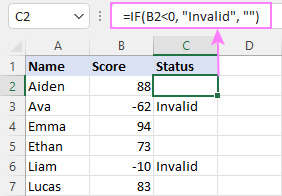
IF formula flagging negative scores as “Invalid” — zero and positive values return blank
Excel IF Function with Text
Basic Text Comparison
Use the equals operator to check if a cell contains a specific text value. The formula below returns ‘No’ if delivery is complete, ‘Yes’ if action is still needed:
=IF(B2="delivered", "No", "Yes")
IF formula with text: checks delivery status and returns whether action is required
You can achieve the same result using the not-equal-to operator with swapped return values:
=IF(B2<>"delivered", "Yes", "No")
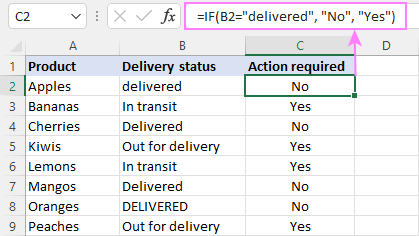
⚠️ Note: IF is case-insensitive by default. “delivered”, “Delivered”, and “DELIVERED” are all treated as identical. See the case-sensitive section below for handling uppercase.
Case-Sensitive IF Formula
To distinguish between uppercase and lowercase text, combine IF with the EXACT function. EXACT returns TRUE only when two strings match exactly — including letter case:
=IF(EXACT(B2,"DELIVERED"), "No", "Yes")
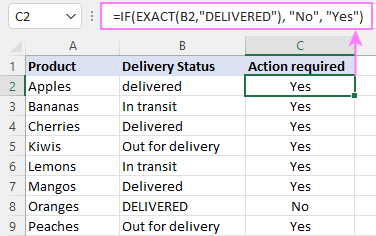
Case-sensitive IF using EXACT: only “DELIVERED” (all caps) returns “No” — other capitalizations return “Yes”
IF with Partial Text Match
IF does not support wildcards (* ?) in the logical test. To check if a cell contains partial text, combine IF with ISNUMBER and SEARCH (case-insensitive) or FIND (case-sensitive):
=IF(ISNUMBER(SEARCH("deliv", B2)), "No", "Yes")
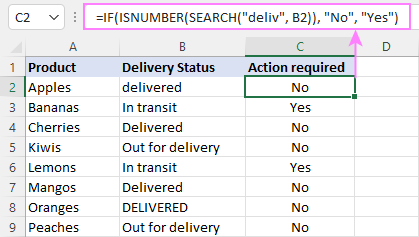
Partial text match using ISNUMBER+SEARCH: matches “delivered”, “Delivered”, and “Out for delivery” all at once.
Excel IF Function with Dates
Excel does not recognize date strings directly in IF’s logical test. If you write =IF(B2>”1/1/2020″, …) it won’t work as expected. You need to wrap the date in the DATEVALUE function:
=IF(B2>DATEVALUE("7/18/2022"), "Coming soon", "Completed")
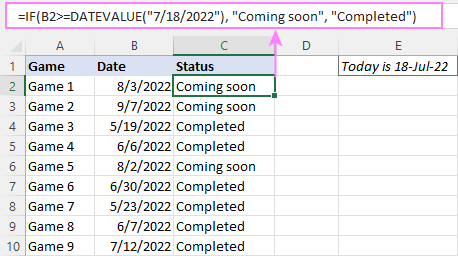
IF with DATEVALUE: compares game dates to 18-Jul-2022 and labels each as “Coming soon” or “Completed”
A cleaner approach is to put the target date in a cell (e.g., E2) and reference it directly with an absolute reference:
=IF(B2>$E$2, "Coming soon", "Completed")
To compare against today’s date, use the TODAY() function:
=IF(B2>TODAY(), "Coming soon", "Completed")
Excel IF Statement for Blank and Non-Blank Cells
There are two approaches to check if a cell is empty — using =”” (equals blank) or the ISBLANK function. They behave slightly differently:
| Check | Method | Behavior |
|---|---|---|
| Blank | =”” | TRUE if visually empty — including cells with empty strings (“”). FALSE otherwise. |
| Blank | ISBLANK() | TRUE only if absolutely nothing is in the cell — no formula, no spaces, no empty string. |
| Non-blank | <>”” | TRUE if any data is present. Cells with empty strings (“”) are treated as blank. |
| Non-blank | ISBLANK()=FALSE | TRUE if cell is not empty. Cells with empty strings (“”) are treated as non-blank. |
For example, to label games that already have a date as ‘Completed’:
=IF(B2="", "", "Completed")
=IF(ISBLANK(B2), "", "Completed")
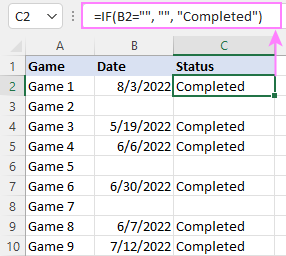
IF blank formula: cells with dates return “Completed”, empty cells return blank
Check if Two Cells Contain the Same Value
Use the equals sign in the logical test to compare two cells. For example, to check if two scores match:
=IF(B2=C2, "Same score", "")
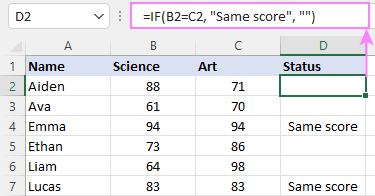
For a case-sensitive comparison (e.g., checking passwords), use EXACT:
=IF(EXACT(A2, B2), "Match", "Don't match")
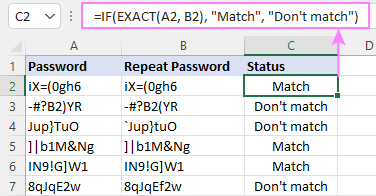
Case-sensitive password comparison using EXACT — only identical strings including case return “Match”
Using IF to Run Another Formula
IF isn’t limited to returning text or numbers — it can also run a calculation or another function depending on the outcome. Embed a formula in the value_if_true or value_if_false argument:
=IF(B2>80, B2*7%, B2*3%)
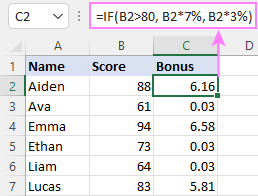
This multiplies the score by 7% if it’s above 80, and by 3% otherwise — a practical bonus calculator.
IF running different calculations: scores above 80 earn a 7% bonus, others earn 3%
Nested IF Statements in Excel
When you need to test more than one condition and return more than two possible results, nest multiple IF functions inside one another. Each IF becomes the value_if_false of the previous one:
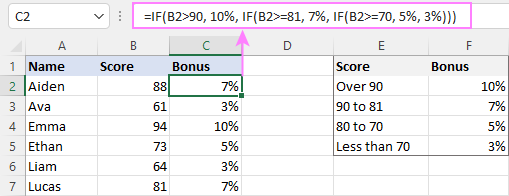
=IF(B2>90, 10%, IF(B2>=81, 7%, IF(B2>=70, 5%, 3%)))
This formula assigns bonuses across four score bands:
• Over 90 → 10%
• 81 to 90 → 7%
• 70 to 80 → 5%
• Below 70 → 3%
⚠️ Nesting Limit: Excel allows up to 64 nested IF levels, but more than 3–4 levels becomes difficult to read and maintain. For complex scenarios, consider IFS, SWITCH, or VLOOKUP instead.
Excel IF with Multiple Conditions (AND / OR)
To test multiple conditions at once, combine IF with the AND or OR functions:
• AND — returns TRUE only when ALL conditions are met
• OR — returns TRUE when ANY one condition is met
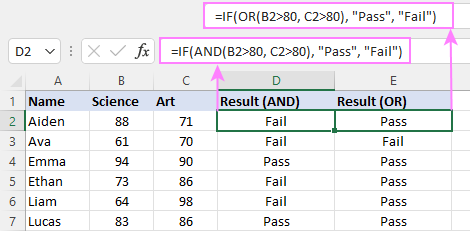
Example — return ‘Pass’ only if BOTH scores exceed 80:
=IF(AND(B2>80, C2>80), "Pass", "Fail")
Example — return ‘Pass’ if EITHER score exceeds 80:
=IF(OR(B2>80, C2>80), "Pass", "Fail")
IF with Error Handling (IFERROR / ISERROR)
From Excel 2007 onwards, the IFERROR function is the simplest way to trap errors — it returns a custom value if a formula produces an error, and the formula result if it doesn’t.
However, if you need to return different values depending on whether an error occurs or not (not just suppress it), use IF together with ISERROR:
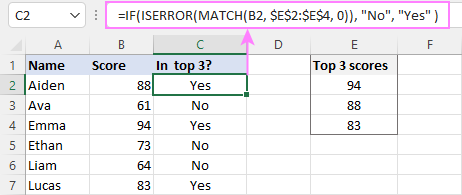
=IF(ISERROR(MATCH(B2, $E$2:$E$4, 0)), "No", "Yes")
This formula checks whether each score in column B matches any of the top 3 scores in E2:E4. It returns ‘Yes’ if a match is found, ‘No’ if MATCH throws an error (no match).
💡 IFERROR vs IF+ISERROR: Use IFERROR when you want to suppress errors and show a fallback value. Use IF+ISERROR when you need different outputs for error vs. no-error cases.
Excel IF Formula Quick Reference
| Scenario | Formula Pattern |
|---|---|
| Basic number check | =IF(B2>80, “Good”, “Bad”) |
| Return blank when false | =IF(B2>80, “Good”, “”) |
| Check negative number | =IF(B2<0, “Invalid”, “”) |
| Text equals check | =IF(B2=”delivered”, “No”, “Yes”) |
| Case-sensitive text | =IF(EXACT(B2,”DELIVERED”), “No”, “Yes”) |
| Partial text match | =IF(ISNUMBER(SEARCH(“deliv”,B2)), “No”, “Yes”) |
| Date comparison | =IF(B2>DATEVALUE(“7/18/2022”), “Soon”, “Done”) |
| Compare to today | =IF(B2>TODAY(), “Upcoming”, “Past”) |
| Check blank cell | =IF(B2=””, “Empty”, “Has data”) |
| Two cells same? | =IF(B2=C2, “Match”, “No match”) |
| Run another formula | =IF(B2>80, B27%, B23%) |
| Nested IF | =IF(B2>90, 10%, IF(B2>=81, 7%, IF(B2>=70, 5%, 3%))) |
| Multiple conditions (AND) | =IF(AND(B2>80, C2>80), “Pass”, “Fail”) |
| Multiple conditions (OR) | =IF(OR(B2>80, C2>80), “Pass”, “Fail”) |
| Error handling | =IF(ISERROR(formula), “Error”, formula) |
Frequently Asked Questions
What does the Excel IF function do?
The IF function tests a condition (logical_test) and returns one value when the condition is TRUE (value_if_true) and another when it is FALSE (value_if_false). It’s the foundation of conditional logic in Excel.
Can I use IF with multiple conditions?
Yes — nest AND or OR inside the logical_test. Use AND when all conditions must be true, OR when any one condition is enough. For more than 2–3 conditions, consider the IFS function for cleaner syntax.
How many IF functions can I nest?
Excel supports up to 64 nested IF levels. In practice, more than 3–4 levels becomes hard to manage. For complex branching, IFS, SWITCH, or a lookup table (VLOOKUP/XLOOKUP) is usually a better approach.
Why does my IF formula return 0 instead of blank?
This happens when the value_if_true or value_if_false argument is omitted. Replace the missing argument with “” (empty string) to return a blank cell instead of 0.
How do I make IF case-sensitive?
Wrap the logical test in the EXACT function: =IF(EXACT(A1,”text”), …). EXACT returns TRUE only when both the content and the letter case match exactly.
Final Thoughts
The IF function is one of the building blocks of Excel. Once you understand its core logic, you can combine it with dozens of other functions — AND, OR, ISNUMBER, EXACT, DATEVALUE, ISERROR — to handle almost any conditional scenario.
Start with the basic number and text examples, then work your way up to nested IFs and multi-condition formulas. With practice, writing IF statements will feel completely natural.
For more Excel formula guides, visit XcelNote.com — practical Excel tips for every skill level.