
Knowing how to combine Excel files is one of the most practical skills you can have when working with data spread across multiple workbooks. Whether you’re consolidating monthly reports, merging department data, or combining survey results, Excel gives you several powerful ways to get the job done.
In this step-by-step guide, you’ll learn 5 methods to combine Excel files into one workbook — from quick manual methods to automated Power Query and VBA solutions. We’ll also cover how to merge multiple sheets within a single workbook and how to combine versions of a shared workbook.
📋 What you’ll learn: Copy & Paste, Move & Copy, Power Query, VBA Macro, and Third-Party Tools — plus how to merge sheets within one workbook and combine shared workbook versions.
ALSO READ: How To Use IF Function in Excel
5 Ways to Combine Excel Files into One Workbook
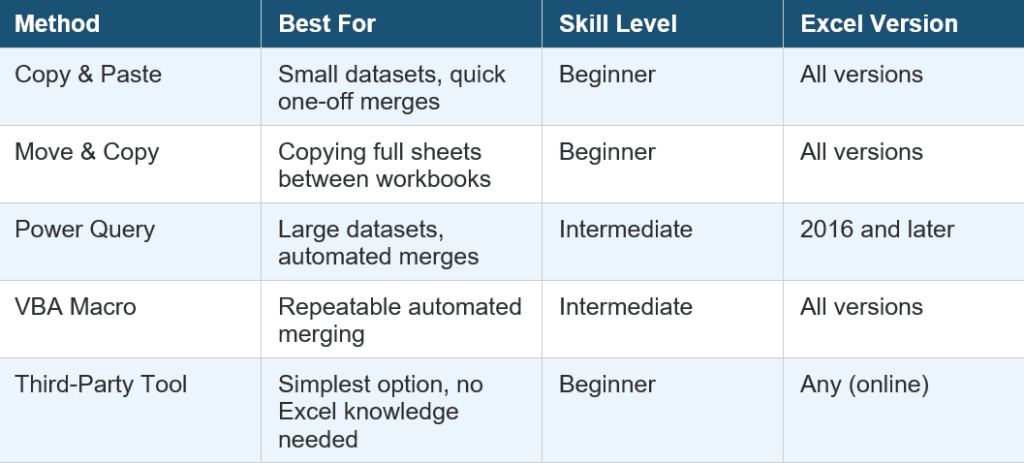
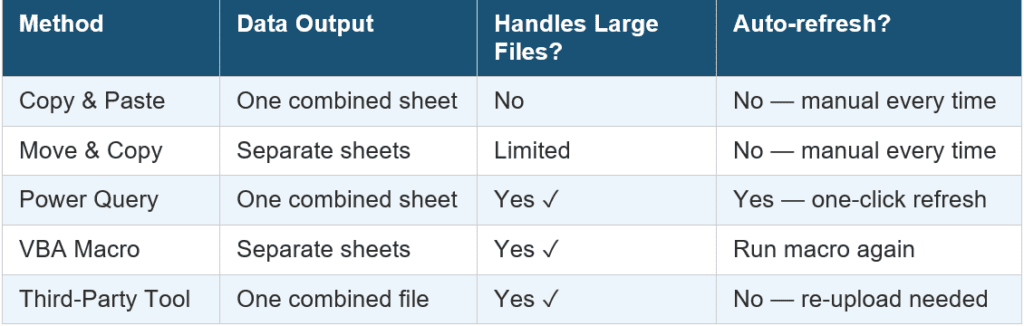
Before diving in, here’s a quick comparison of all five methods so you can pick the right one for your situation:
Method 1: Copy and Paste
The simplest way to combine Excel files is to manually copy data from one workbook and paste it into another. It works in all Excel versions and gives you complete control over where the data lands.
- Open your main (destination) Excel workbook where you want all the merged data to go.
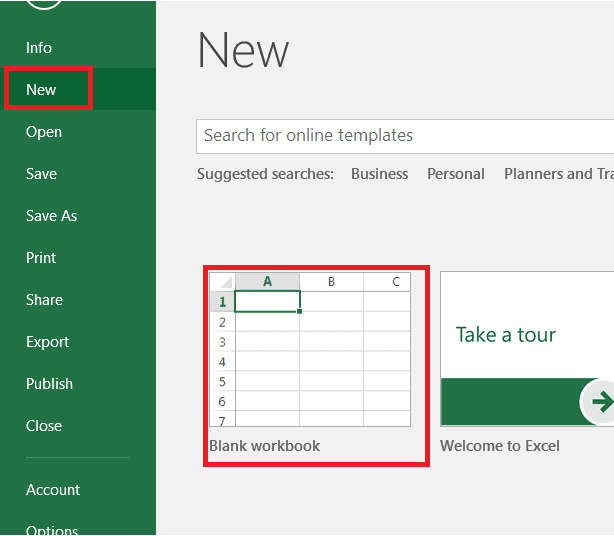
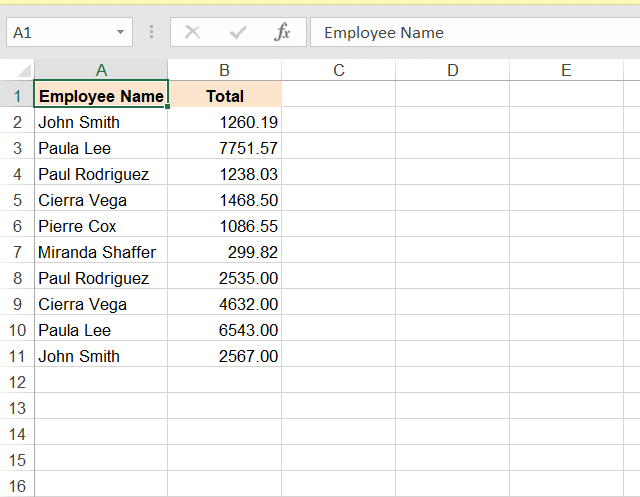
2. Open the first source workbook you want to merge from. Navigate to the sheet with the data.

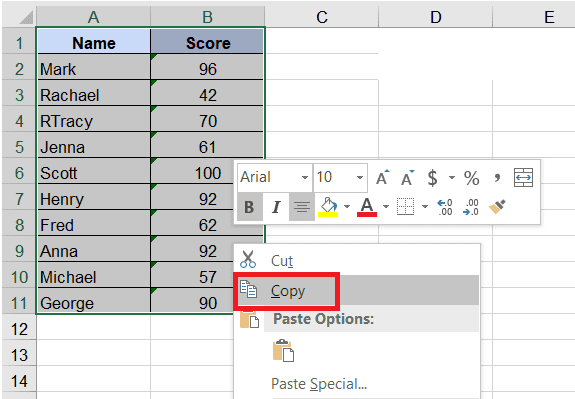
3. Select the data range you want to copy, right-click, and choose Copy — or press Ctrl+C.
4. Switch back to the main workbook, click the first empty cell where you want the data to start (top-left corner).

5. Right-click and choose Paste or press Ctrl+V (Cmd+V on Mac). Your data will appear.
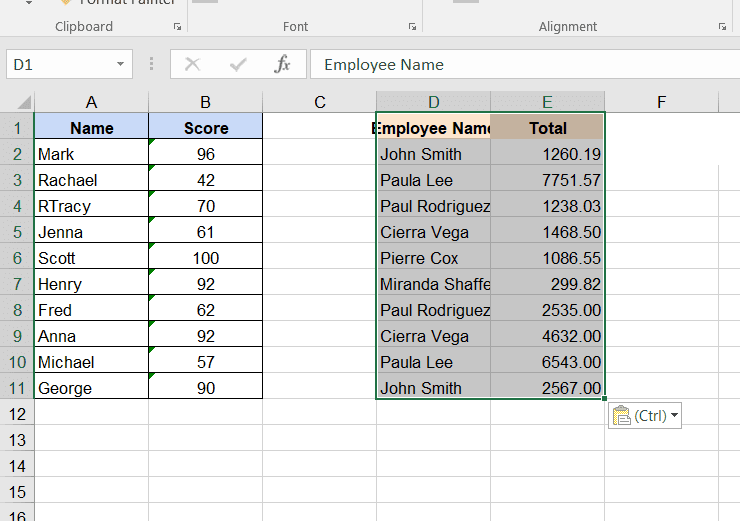
6. Repeat for all other source workbooks, pasting each dataset below the previous one.
Limitation: Copy and paste works well for small datasets, but becomes tedious and error-prone with large amounts of data or many files. Use Power Query for scalable merging.
ALSO READ: How to use XLOOKUP with two sheets?
Method 2: Using Move and Copy
The Move and Copy feature lets you transfer entire worksheets from one workbook to another — keeping them as separate sheets in the destination workbook rather than combining the data into one sheet.
- Open both workbooks: the source workbook with your data, and the destination (blank) workbook.
- In the source workbook, right-click a sheet tab at the bottom. To select multiple sheets, hold Ctrl (Windows) or Cmd (Mac) and click each tab.

3. Right-click the selected tabs and choose Move or Copy from the context menu.
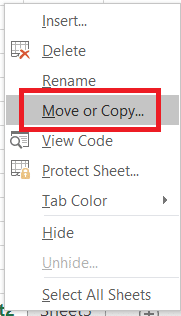
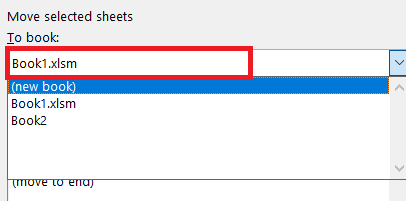
4. In the dialog box, click the To book dropdown and select your destination workbook.
5. Choose where the sheets should appear in the Before sheet list, and check the Create a Copy checkbox.
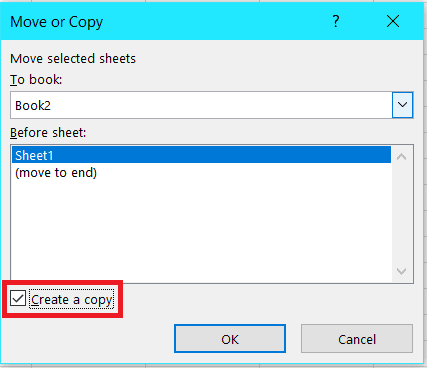
6. Click OK. Repeat for each additional source workbook, selecting the same destination each time.
When to use this: Move and Copy is ideal when you want sheets to remain separate in the destination workbook. If you want all data in a single sheet, use Power Query instead.
Method 3: Using Power Query (Best for Large Datasets)
Power Query is the most powerful and reliable way to combine Excel files. It automates the process, handles large datasets cleanly, and can refresh automatically when source data changes. It’s available in Excel 2016 and later.
⚠️ Requirement: All Excel files must be in the same folder for the From Folder method. If they’re in different folders, use the From Workbook method (covered below).
Option A: Combine Files from the Same Folder
- Put all your Excel files into one folder on your computer.
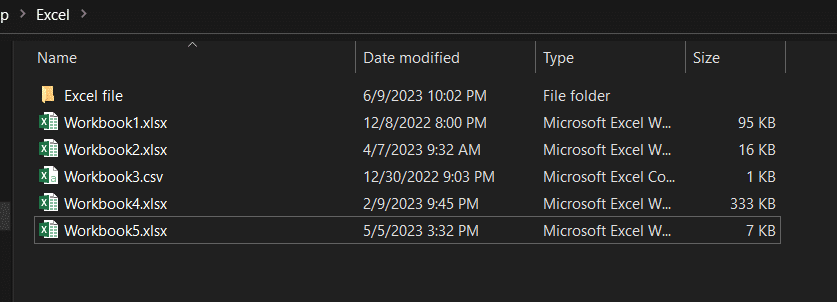
2. Open a new (destination) Excel workbook.
3. Go to the Data tab and click Get Data (or New Query in older versions).

4. Click From File → From Folder.
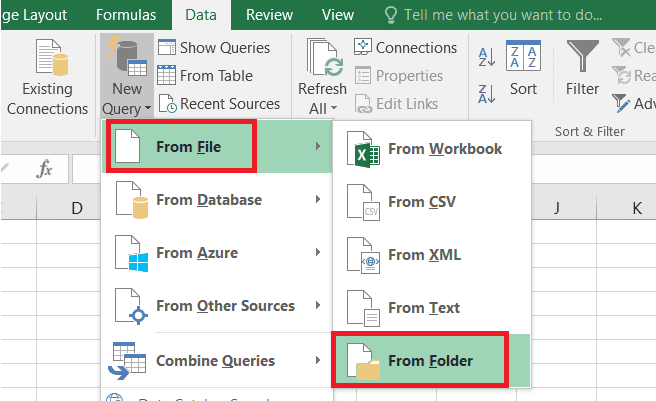
5. Click Browse to find the folder, then click OK.

6. A preview window shows all files in the folder. Click the Combine dropdown and choose Combine & Load to merge immediately, or Transform Data to preview and edit first.
💡 Important: All files must have the same sheet name or table name for Power Query to combine them correctly. If they differ, use Option B below.
Option B: Combine Files with Different Sheet Names (From Workbook)
- Go to Data → Get Data → From File → From Workbook.

2. Select the first file from the folder and click Import.
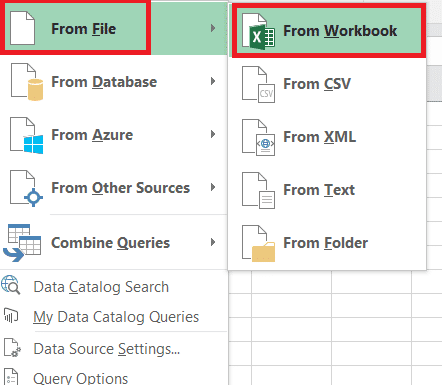
3. Select the sheet you want to import in the Navigator pane.
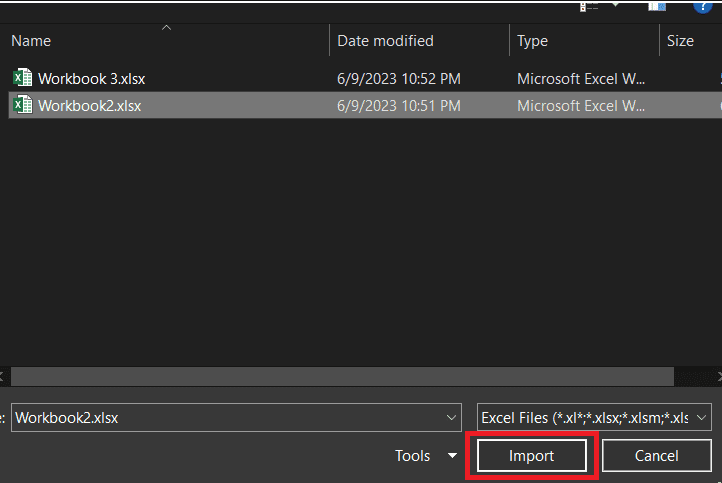

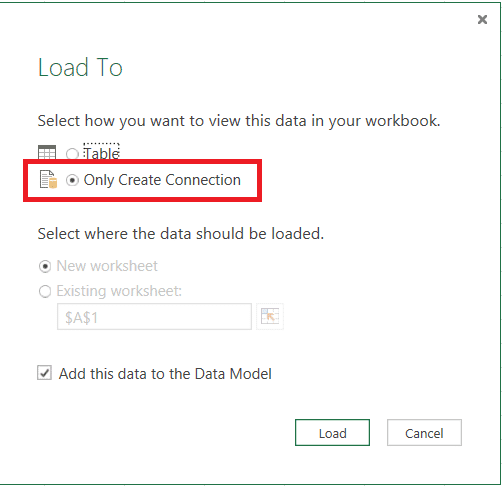
4. Click Load → Load To.

5. Choose Only Create Connection and click OK.
6. Repeat steps 1–5 for each additional workbook.

7. Go to Get Data → Combine Queries → Append.
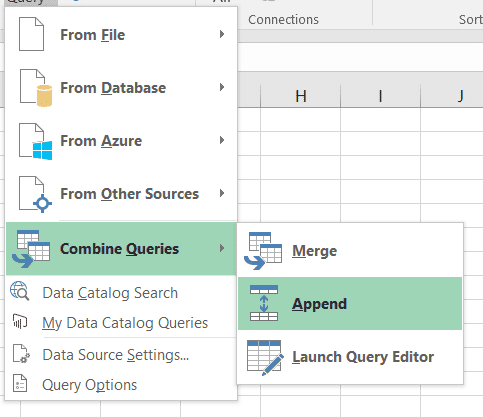
8. Choose all the queries to append and click OK. Then go to File → Close & Load.
✅ Power Query is the recommended method for combining Excel files. It’s faster than copy-paste, scalable to large datasets, and can be refreshed with one click when data changes.
Method 4: Using the MergeExcelFiles VBA Macro
VBA (Visual Basic for Applications) lets you automate repetitive tasks in Excel. The macro below opens a file picker, loops through all selected workbooks, and copies every sheet into your main workbook — all in seconds.
You don’t need to know VBA to use this — just copy and paste the code.
Step 1: Enable the Developer Tab
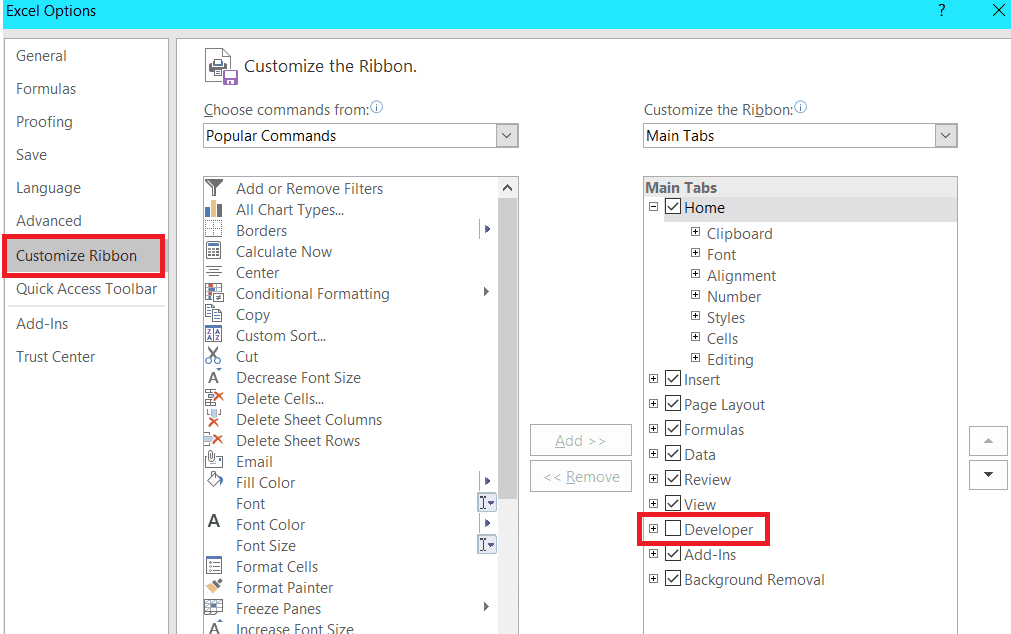
- Go to File → Options and click Customize Ribbon.

2. Check the box next to Developer in the right-hand column, then click OK.
Step 2: Open the VBA Editor and Add the Macro
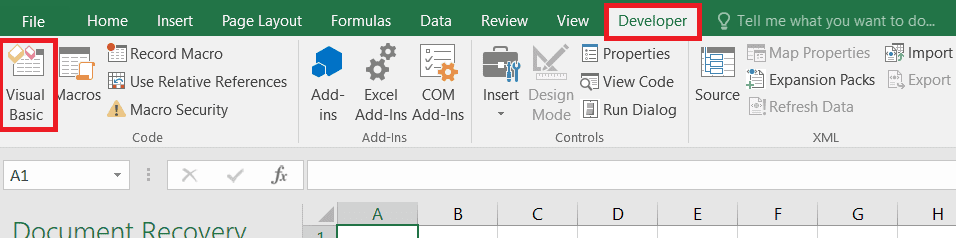
- Click the Developer tab on the ribbon, then click Visual Basic to open the VBA Editor.
2. In the VBA Editor, go to Insert → Module to add a new blank module.
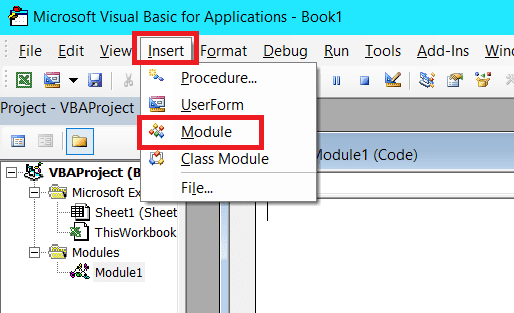
3. Copy and paste the following macro code into the module:
Sub mergeFiles()

    'Merges all files in a folder to a main file.

    'Define variables:

    Dim numberOfFilesChosen, i As Integer

    Dim tempFileDialog As fileDialog

    Dim mainWorkbook, sourceWorkbook As Workbook

    Dim tempWorkSheet As Worksheet

    Set mainWorkbook = Application.ActiveWorkbook

    Set tempFileDialog = Application.fileDialog(msoFileDialogFilePicker)

    'Allow the user to select multiple workbooks

    tempFileDialog.AllowMultiSelect = True

    numberOfFilesChosen = tempFileDialog.Show

    'Loop through all selected workbooks

    For i = 1 To tempFileDialog.SelectedItems.Count

        'Open each workbook

        Workbooks.Open tempFileDialog.SelectedItems(i)

        Set sourceWorkbook = ActiveWorkbook

        'Copy each worksheet to the end of the main workbook

        For Each tempWorkSheet In sourceWorkbook.Worksheets

            tempWorkSheet.Copy after:=mainWorkbook.Sheets(mainWorkbook.Worksheets.Count)

        Next tempWorkSheet

        'Close the source workbook

        sourceWorkbook.Close

    Next i

End Sub
4. Go to File → Save As and save the workbook as Excel Macro-Enabled Workbook (*.xlsm).
Step 3: Run the Macro
- Press Alt+F8 to open the Macro dialog.
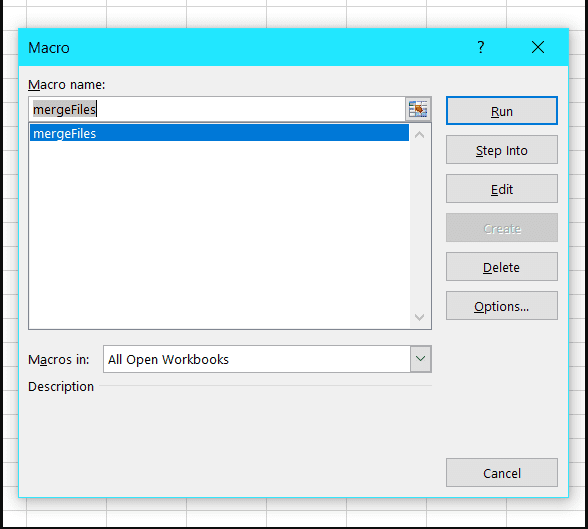
2. Select mergeFiles from the list and click Run.
3. In the file picker that opens, navigate to your Excel files folder, select all files to merge, and click OK.
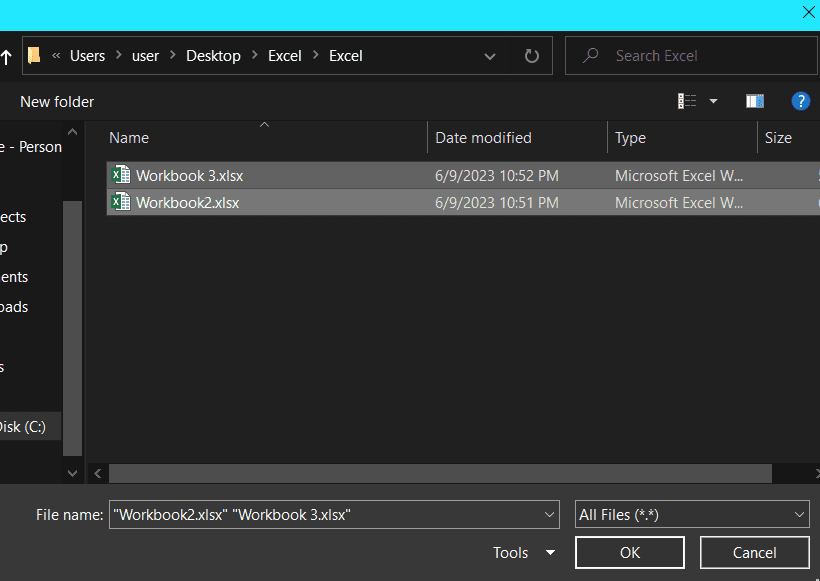
💡 Tip: To select multiple files in the file picker, hold Ctrl and click each file, or press Ctrl+A to select all files in the folder.
Method 5: Using a Third-Party Tool (Easiest Option)
If you want to combine Excel files without touching any formulas or settings, an online merger tool is the fastest option. No installation required — just upload, merge, and download.
We’ll use Docsoso as an example, but similar tools like Aspose Excel Merge or ILovePDF also work well.
- Go to Docsoso Excel Merger at docsoso.com.
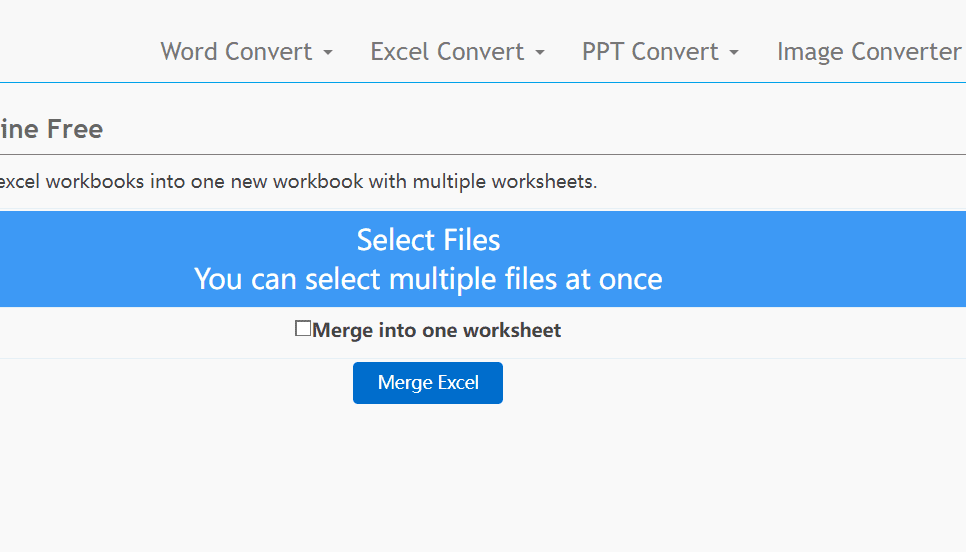
2. Click Select Files and choose all the Excel files you want to merge from the same folder.
3. Click Merge Excel and wait a few seconds for the tool to combine the files.
4. Click Download to save your merged Excel file.

⚠️ Privacy Note: When using online tools, avoid uploading files containing sensitive or confidential data. For private data, use Power Query or the VBA macro instead.
How to Merge Multiple Excel Sheets into One
If your data is split across multiple sheets within a single workbook (rather than separate files), here’s how to combine them all into one sheet using Power Query:
- Convert all your data ranges to Excel Tables: click anywhere in the data and press Ctrl+T. Repeat for every sheet.
- Go to the Design tab and give each table a unique, descriptive name.

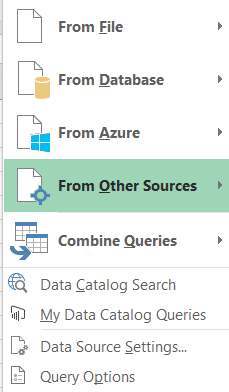
3. Go to the Data tab and click Get Data → From Other Sources.
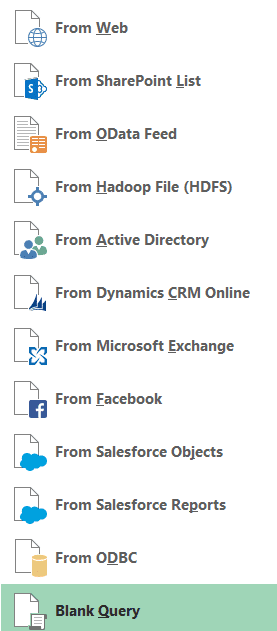
4. Choose Blank Query from the menu.
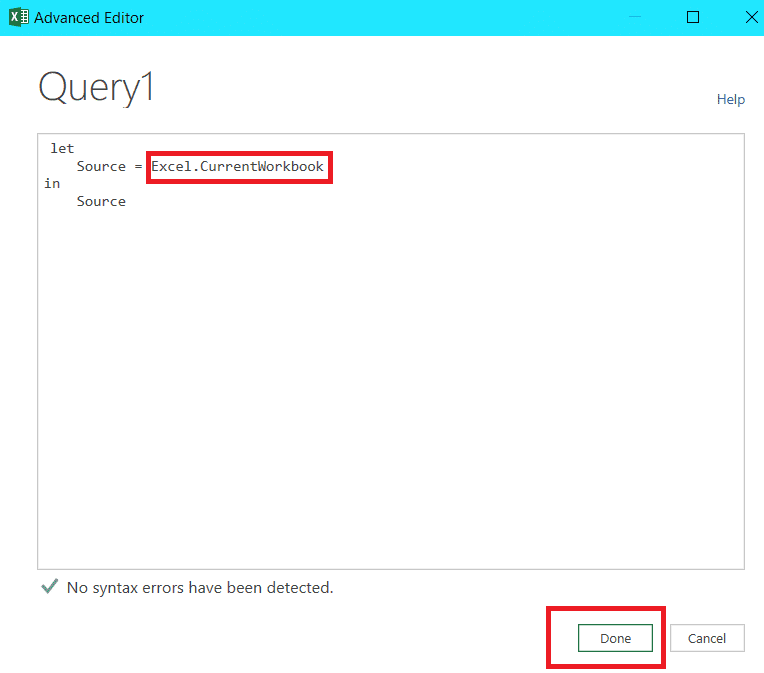
5. In the Power Query Editor, click Advanced Editor.

6. Replace the code with: Excel.CurrentWorkbook() — then click Done and Invoke if prompted.
7. Your tables will appear in the query window as rows.
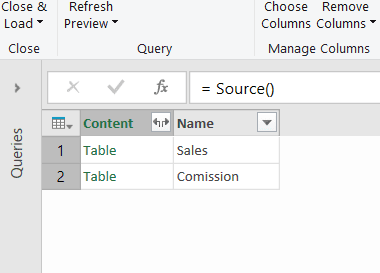
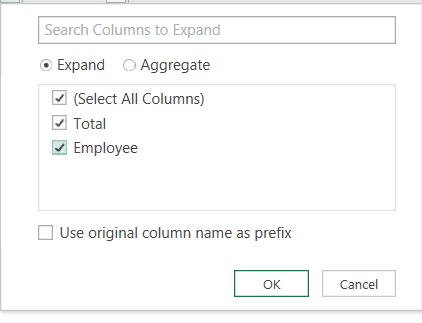
8. Click the double-headed arrow icon next to the Content column to expand all tables.

9. Uncheck ‘Use original column name as prefix’ to keep column headers clean, then click OK.
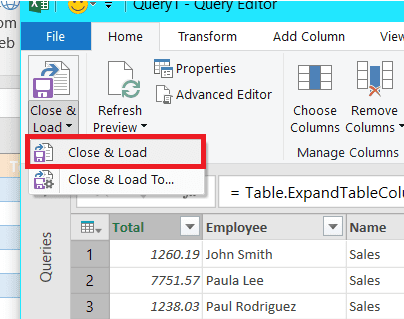
10. Click Close & Load. All sheets will be merged into a new sheet in the workbook.
How to Combine Versions of a Shared Excel Workbook
If multiple people have been editing copies of the same shared workbook and you need to merge all their changes into one master copy, Excel has a built-in Compare and Merge Workbooks feature.
Step 1: Add the Compare and Merge Command to the Quick Access Toolbar
- Go to File → Options. The Excel Options dialog will open.
- Click Quick Access Toolbar in the left panel.
- In the ‘Choose commands from’ dropdown, select All Commands.
- Scroll down and find ‘Compare and Merge Workbooks’, then click Add to add it to the toolbar.
- Click OK. The icon will now appear in your Quick Access Toolbar at the top.
Step 2: Merge the Shared Workbook Versions
- Open the original shared workbook (the master copy).
- Click the Compare and Merge Workbooks icon in the Quick Access Toolbar. Save the workbook if prompted.
- In the file picker, select all the copies you want to merge into the master and click OK.
- Excel will merge all changes into the master workbook. Cells with changes will be highlighted in different colors.
⚠️ Note: The Compare and Merge feature only works with shared workbooks. If the workbook isn’t shared (Review → Share Workbook), this option won’t be available.
Which Method Should You Use? (Quick Comparison)
Frequently Asked Questions
How do I get data from multiple Excel workbooks at once?
The best way is Power Query (Data → Get Data → From File → From Folder). It pulls data from all files in a folder into one consolidated table automatically, and can refresh when your source files change.
What is the difference between Append and Merge in Excel?
Appending stacks data vertically — rows from one table are added below the rows of another, expanding the dataset downward. Merging combines data horizontally — columns from different tables are joined based on a shared key column, similar to a JOIN in SQL or XLOOKUP in Excel.
Can I combine Excel files without opening them?
Yes — Power Query can pull data from files without you needing to open them. Simply point it to the folder containing your files and it reads them automatically. Third-party online tools also don’t require the files to be open.
Does Power Query work with Excel 2013?
Power Query is built into Excel 2016 and later. For Excel 2013, you need to download it as a free add-in from Microsoft. It is not available for Excel 2010 or earlier.
How do I combine Excel files and keep the formatting?
Using Move and Copy preserves sheet formatting completely. Power Query consolidates data but may not carry over cell formatting — it focuses on data values. For format-preserving merges, copy-paste with Paste Special (Keep Source Formatting) or a third-party tool works best.
Final Thoughts
Knowing how to combine Excel files efficiently can save hours of manual work. For quick one-off tasks with small data, Copy & Paste or Move & Copy gets the job done. For recurring merges or large datasets, Power Query is the clear winner — fast, reliable, and refreshable.
If you’re not comfortable with Excel features yet, a third-party online tool is a perfectly valid option for straightforward merges.
Have a question about merging your specific files? Drop a comment below — we’d love to help!
For more Excel guides, visit XcelNote.com — practical tips for every Excel skill level.