



Want to add a column in Excel? To use the SUM method or the AutoSum button to add up any column of numbers, just follow these easy steps.
Microsoft Excel has changed the way data is managed since it came out in 1985. It can be used for everything from simple calculations to in-depth data analysis. To sum up a column in Excel is a very useful skill, whether you’re keeping track of project costs, managing your budget, or looking at sales data. You can quickly add up numbers, save time, and work more efficiently with just a few clicks or keystrokes.
For both beginners and more experienced users, let’s look at a range of ways to add up columns in Excel.
ALSO READ: How to Use XLOOKUP in Excel: Step-By-Step + Examples (2026)
Here are 4 Methods to Sum a Column in Excel
Here are 4 different ways to add up the numbers in a column in Excel. The SUM and AUTOSUM functions in Excel can help you do this. You can also use Subtotal or turn your range of cells into an Excel Table, which will give you more ways to work with your data.
Method 1: How to sum a column in Excel with one click
This one choice is really quick. To find the sum of the cells you’ve chosen, just look at the Excel Status bar and click on the letter of the column that has the numbers you want to add.

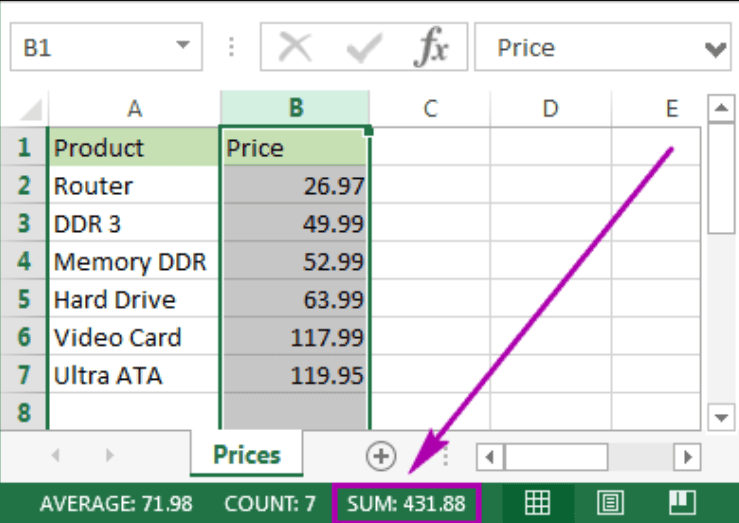
This method is very quick, but it doesn’t let you copy or show numbers.
Method 2: How to total columns in Excel with AutoSum
You can use Excel’s AutoSum function to add up a column and save the result in a table. The sum will be shown in the cell you choose after the numbers are added up automatically.
- Press on the first empty cell below the column you want to add up to skip any other steps, like range selection.

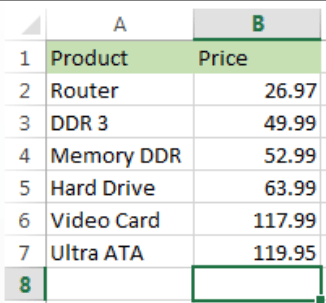
2. After going to the Home tab and selecting the Editing group, click on the AutoSum button. (Home tab -> Editing group ->AutoSum button)


3. Click on the range of numbers you want to use and Excel will add the =SUM function for you.

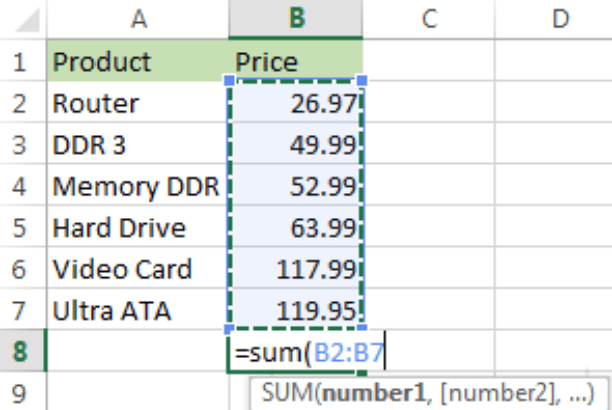
4. You can see the column total in Excel by pressing the Enter key.

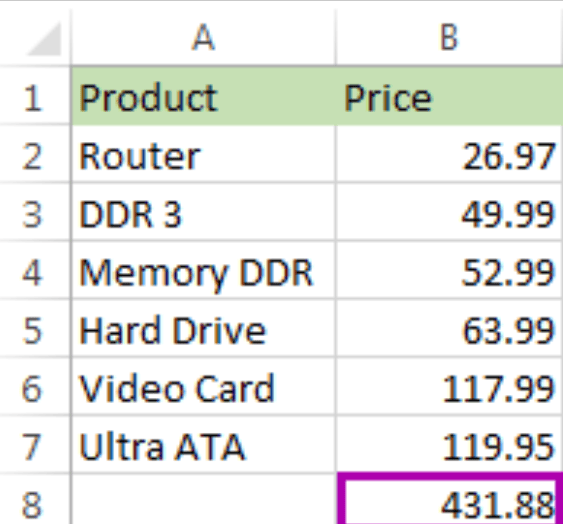
This way is quick, and the result of adding is stored automatically in your table.
Method 3: Use the SUM function to total a column
To use the SUM function, you can also type it in manually. What’s the point? To use an address for a big range instead of picking it by hand or to add up only some of the cells in a column.
- Wherever you want to see the sum of the cells you have chosen, click on a cell in your table.

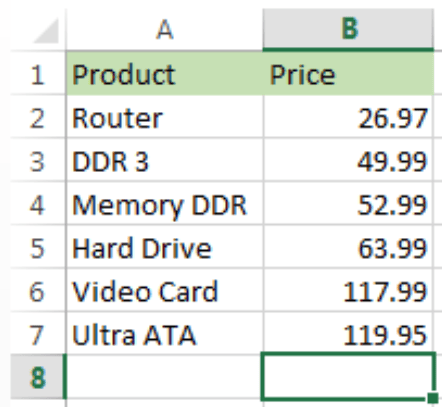
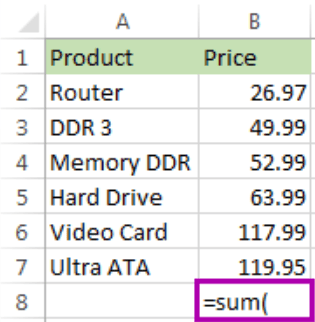
2. Type =sum( into this cell that you chose).

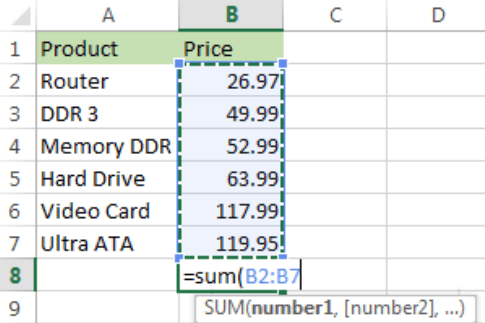
3. Press the Enter key after picking the range of numbers you want to add up.
Hint: You can type in the range address by hand, like this: =sum(B1:B2000). It helps if you need to calculate a lot of ranges.

There you have it! The column’s sum will show up. The number will show up in the right cell.

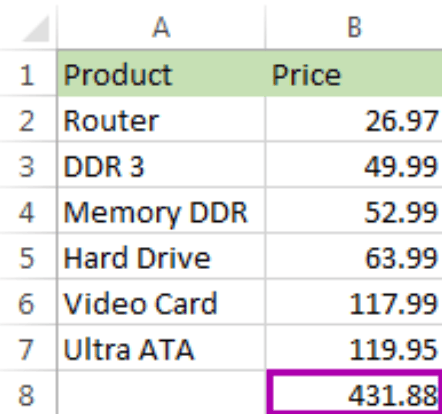
If you want to add up a lot of numbers in Excel but don’t want to highlight the range, this option is very helpful. You still have to enter the code by hand, though. Also, please know that the SUM function will work with numbers from rows that have been hidden or filtered. Read on to learn how to add up only the cells that can be seen.
Note:

1. You can easily add up new values in a column and find the total by using the SUM function.

2. To add two columns together, use the PRODUCT function or the multiplication operator. Refer to How to multiply two or more columns in Excel for more information.
RELATED: How to Use ChatGPT with Excel
Method 4: Use Subtotal in Excel to sum only filtered cells
This feature is great for adding up only the cells that can be seen. Most of the time, these are cells that have been filtered or hidden.
- Start by filtering your table. Select a cell in your data, click on the Data tab, and then click on the Filter button.


2. There will be arrows in the first lines of each column. To select only the right header, click on the arrow next to it.

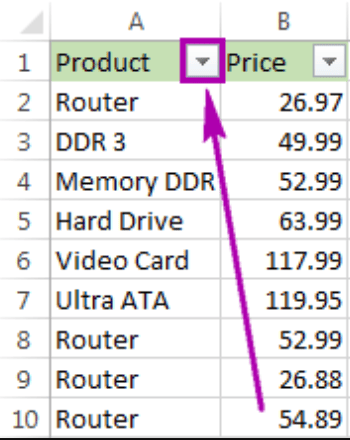
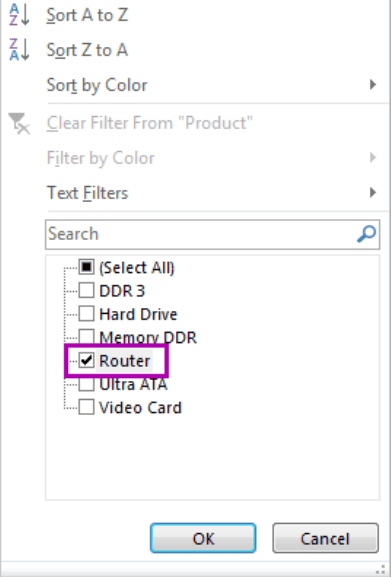
3. Mark only the value(s) you want to filter by, then uncheck “Select All.” What you see is after you click OK.

4. After picking the range of numbers you want to add, go to the Home tab and click AutoSum.


There you go. These are the only cells in the column that are added together after being filtered.

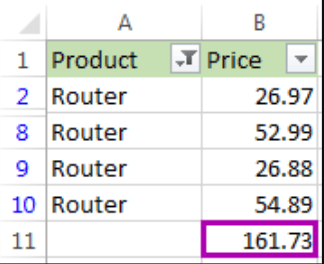
If you only want to see the total of the cells that are selected and don’t want to paste it into your table, you can select the range and see the total of the cells that are selected on the Excel Status bar. You can also see another choice for adding up only the filtered cells.
Frequently Asked Questions (FAQs)
1. How can I quickly add up the numbers in a column in Excel?
With AutoSum, you can quickly add up the numbers in a column. Select the empty cell below your numbers, go to Home → AutoSum (Σ), and press Enter. Excel will automatically calculate and display the total.
2. What is the formula in Excel to add a whole column?
To add all the numbers in a column, use the SUM function. For example, type =SUM(B:B) into a blank cell to calculate the total of column B.
3. What’s the difference between Excel’s SUM and AutoSum functions?
The SUM function allows you to enter a cell range manually, such as =SUM(B1:B20). AutoSum automatically suggests a range and inserts the SUM formula, making calculations faster.
4. In Excel, how do I add up only filtered cells?
To calculate the total of visible cells in a filtered list, use the SUBTOTAL function. For example, =SUBTOTAL(9,B2:B100) adds visible values while excluding filtered-out rows.
5. Do I need to use a formula to add a column in Excel?
No, you don’t need a formula. Select the cells containing your numbers and check the Sum value on the Excel Status Bar at the bottom of the window. This displays the total without inserting a formula into your worksheet.
6. How do I add up numbers in more than one column in Excel?
You can use the SUM function to add multiple columns. For example, =SUM(B2:C100) calculates the total of all numeric values in columns B and C, from rows 2 to 100.
7. Do hidden rows get added up when you use the SUM function in Excel?
Yes. The SUM function includes numbers in the selected range, even if some rows are hidden or filtered out. To sum only visible cells, use SUBTOTAL or AGGREGATE, depending on your requirements.
8. How can I make a column’s total stay up to date when new numbers are added?
You can use a formula such as =SUM(B:B) to include new numbers entered anywhere in column B. Alternatively, convert your data into an Excel Table so that formulas and ranges can expand as you add more records.