



Any product-based business that wants to succeed needs an inventory database. It makes important business decisions, like placing an order for new inventory, simple and accessible.
Although there are many complex and comprehensive inventory management programs available online, you can also use Excel to create a basic inventory system. Not only is it feasible, but it’s also fairly simple.
Creating a Simple Inventory Database in Excel
Let’s follow the steps below to create an inventory database for a mobile phone shop in order to better understand how to create an inventory system in Excel:
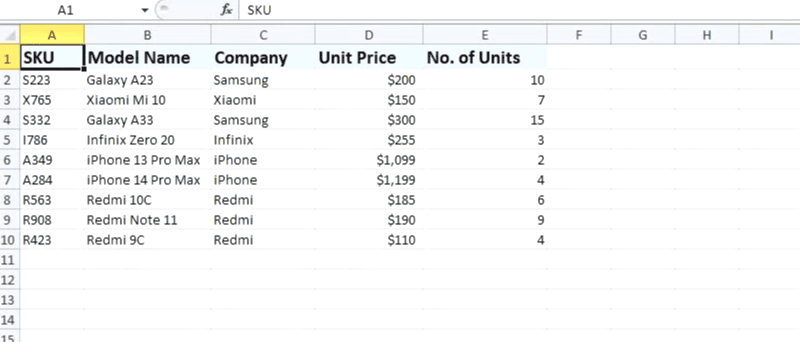
- Make a new Excel worksheet with the following headers in the top row: SKU, Model Name, Company, Unit Price, and the Number of Available Units (you can make additional headers based on your needs).
- For the headers, use bold typefaces.
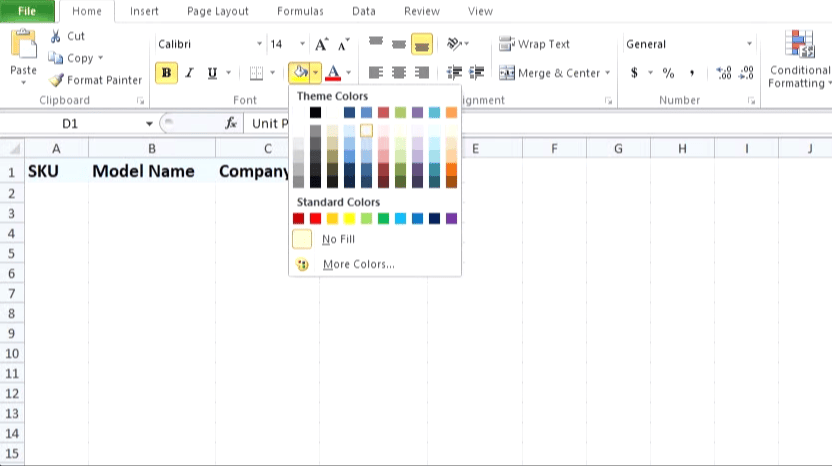
- Add a background color to the header cells to make them stand out.
- Go to the Home tab’s Font section after selecting every header.
- Choose your preferred color by clicking the arrow next to the Fill Color option.

When the headers are prepared, it’s time to enter the data. This is what you ought to have by now:

By following the instructions below, you can add borders to your Excel database to make it more readable and aesthetically pleasing:
- In your inventory database, select every cell.
- Navigate to the Home tab’s Font section.
- Next to the Borders icon, click the arrow.

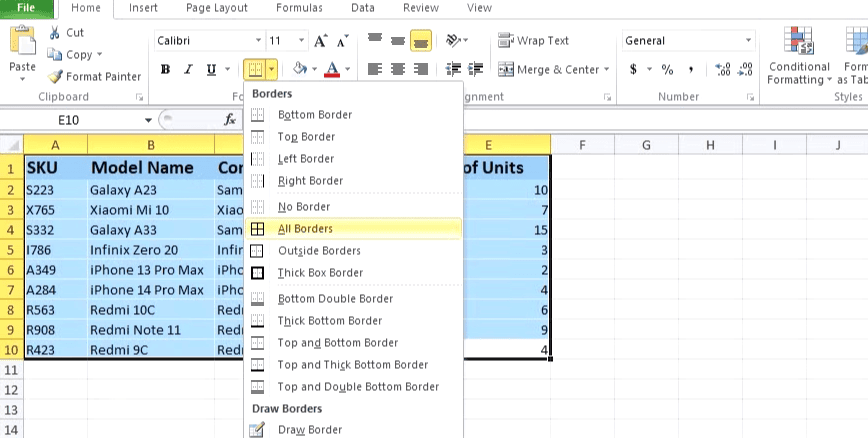
4. Choose the type of borders you want for the cells in your inventory database.
To add the filter function into your database:
- In your database, pick any cell.
- Navigate to the Editing area located on the Home tab’s extreme right.
- Next to the Sort & Filter icon, click the arrow.

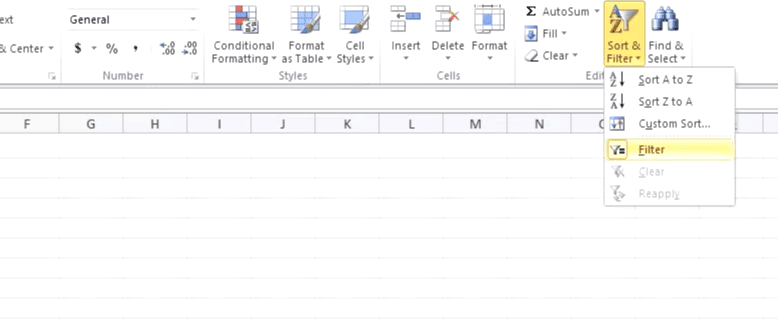
4. Now click on Filter.
Congratulations! You’ve just finished building a mobile shop’s inventory database.

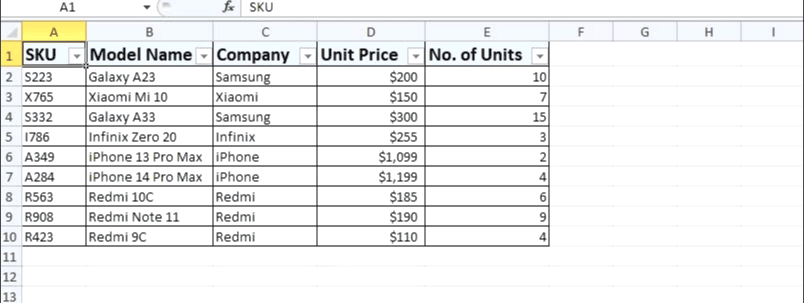
Adding new data or changing existing data is a simple way to update the database. Additionally, you can use the newly created inventory database to filter out specific information.
For instance, if you wish to filter the entries in your inventory database for a specific business:
- Next to the Company header, click the arrow.

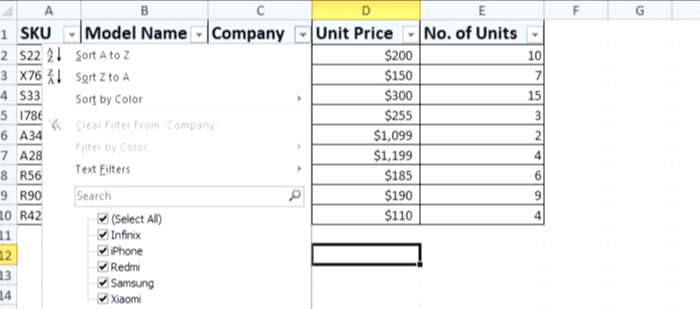
2. Choose the company/ companies of your choice.
3. Only those companies’ mobile phone entries will be displayed in the database.
ALSO READ: How to Create a Sales Dashboard in Excel
Using the VLOOKUP Function in Excel Inventory System
Let’s assume you wish to look up the cost of a specific item in your database. You can use Excel’s VLOOKUP function rather than looking it up in the database. The following is the VLOOKUP formula:
=VLOOKUP(lookup_value,table_array,col_index_num,[range_lookup])Where:
- LOOKUP_VALUE: The value you wish to search for in the designated table array’s first column.
- TABLE_ARRAY: The designated cell range in which you wish to use the VLOOKUP function.
- COL_INDEX_NUMBER: The column number that holds the return value.
- RANGE_LOOKUP: The optional variable can be either TRUE or FALSE. If you want Excel to return an exact match, enter FALSE; if you want it to return an approximate match, enter TRUE. Excel will, by default, set a TRUE value and return approximate matches if you don’t specify a value.
When you use the VLOOKUP function, Excel finds the LOOKUP_VALUE in the designated cell range’s first column. For the VLOOKUP function to function, your LOOKUP_VALUE must be in the first column of the TABLE_ARRAY (assigned cell range).
Excel returns a result after determining the LOOKUP_VALUE and counting the number of cells using the given COL_INDEX_NUMBER. Depending on whether you gave RANGE_LOOKUP a FALSE or TRUE value, the return value will either be exact or approximate.
Let’s use the VLOOKUP function to extract data from our mobile phone inventory database now that you have a basic understanding of it. Use the procedures listed below to look up a specific mobile phone’s price in your database.
- Make the SKU and Price headers in new cells.
- In the Price header, enter the following formula:
- =VLOOKUP(
- Choose the cell beneath the SKU header (I5 in our case) and add a comma to provide a LOOKUP_VALUE.
- Select every cell in the database under the headers (A2:E10 in our case) for the TABLE_ARRAY, followed by a comma.
- Since the Unit Price header is the fourth column in our database, we will set COL_INDEX_NUMBER to 4 and add a comma after it in order to determine the price of the desired SKU.
- Finally, since we want Excel to return exact values, set the RANGE_LOOKUP to FALSE.

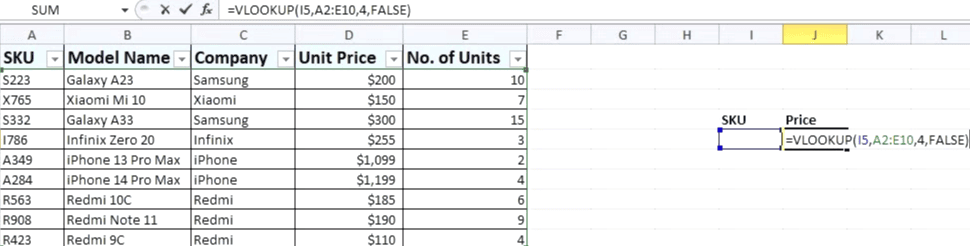
7. Now Press Enter.
Don’t worry, Excel will return a #N/A error. The reason for this is that we haven’t included our preferred SKU (LOOKUP_VALUE) in the SKU header.
Enter the price of a specific SKU (from our designated range, i.e., our database) under the SKU header, and Excel will provide the item’s precise price. This can be applied to any item in the database.
You repeat the procedure to learn more details about the item. Suppose you also wish to know how many units of a certain item are available. To accomplish that, make a new header called No. of Units and place it next to the Price header. Enter the following formula under this new header:
=VLOOKUP(I5,A2:E10,5,FALSE)
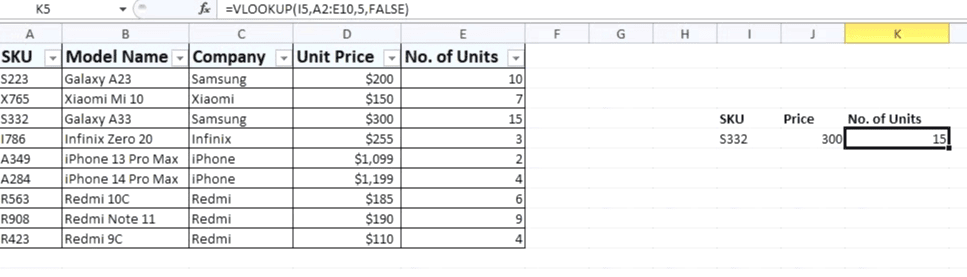
Observe that our COL_INDEX_NUMBER has changed from 4 (in the previous formula) to 5, but the remainder of the formula remains the same. This is due to the fact that our database’s fifth column contains the No. of Units header.
How to Create an Inventory System Using Excel Templates
Using an Excel inventory template is a simpler option if you don’t want to deal with the trouble of manually creating an inventory system in Excel.
- To find Excel inventory templates that are ready to use, visit the Office website.

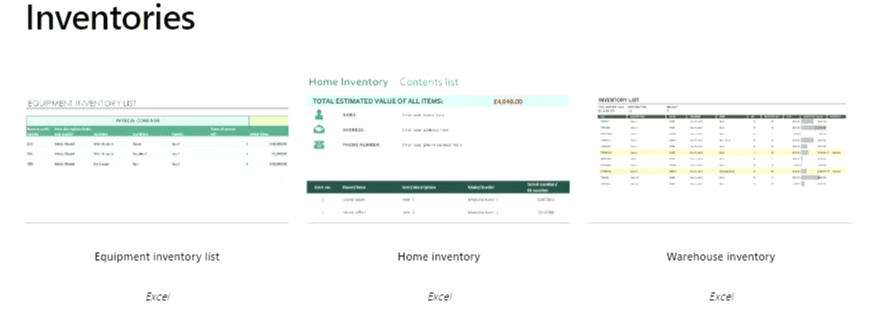
- Select and download the template that you want to use.
- Double-clicking it will open the template file after the download is finished.
- To begin making changes based on your needs, click Enable Editing at the top.

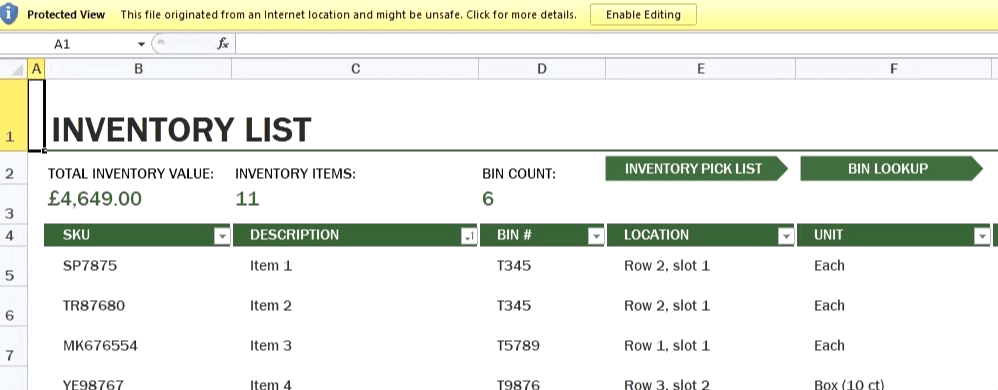
You can now use the template to manage your inventory by adding items and updating pertinent information, and you can add or remove headers as needed.
Boost the Performance of Your Excel Inventory System
Now that you understand the fundamentals, it’s time to advance your Excel inventory system. By learning about various Excel formulas and using them in your Excel inventory database, you can accomplish that with ease. You’ll be able to use your Excel inventory database more efficiently and creatively as a result.