

There are three methods to apply AI in Microsoft Excel: Microsoft Copilot embedded into the ribbon, an AI add-on from the Office store such as GPT for Excel, and custom code with VBA or Office Scripts calling an AI API. The correct way relies on your licensing, your data volume, and the AI models you require.
This tutorial covers all three, including setup processes, scaling restrictions, and expenses for each.
Here are three ways to use AI in Excel, In short
| Method | What it is | Best for | Scale limits | Cost model | Where it breaks |
|---|---|---|---|---|---|
| Microsoft Copilot | Microsoft’s built-in AI side pane, with Agent Mode | Summaries, formulas, pivot tables, workbook questions | Conversational — one request at a time, no reliable bulk row-by-row runs | Standard access with a Copilot Chat-eligible Microsoft 365 business or enterprise plan, or a Personal/Family plan with AI credits; full experience with the Microsoft 365 Copilot add-on (about $30/user/month) or Microsoft 365 Premium | Bulk processing; speed — averaged 1m57s on tasks an add-in agent did in 16s in our March 2026 benchmark |
| AI add-in (e.g. GPT for Excel) | Office add-in with an AI agent, bulk tools, and AI functions | Bulk row-by-row processing, everyday tasks by chat, choice of AI models | Up to 1 million rows in one run, at up to 1,000 answers per minute depending on model and task | Free trial, then a subscription from $25/seat with included usage | Requires installing an Excel add-in |
| VBA / Office Scripts | Custom code calling an AI provider’s API | Bespoke automations and pipelines | Whatever you engineer, within API rate limits | Free platform; you pay the AI provider per token | Requires coding, API key management, and ongoing maintenance |
This article continues to explain each way, including what it does well, how much it costs, and when it’s no longer the best choice.
How to use Microsoft Copilot in Excel
The Microsoft AI Copilot is built right into the Excel menu, so you don’t have to install it. Ask the Copilot pane to describe this table, suggest a formula, build a pivot table, or show extremes in plain English. It can update the worksheet directly in Agent Mode instead of just offering changes.
There are two levels of access. Users with eligible work or school accounts, as well as Microsoft 365 Personal or Family subscribers with AI credits, get standard access. However, access may be limited when the service is busy. For the full experience, work and school users can purchase the Microsoft 365 Copilot add-on for around $30 per user per month, while individual users can get Microsoft 365 Premium. These plans offer priority access, better reasoning features, and the option to choose between Claude and GPT models.
Where it shines: zero setup, workbook-level questions, and quick analysis inside files you already have open.
Where it breaks: big row-by-row work. In our measure of AI agents for Excel (11 use cases, tried March 2026), Copilot averaged 1 minute 57 seconds on normal spreadsheet tasks that GPT for Excel finished in 16 seconds, and on big tasks it fell back to formula hacks or returned incomplete results. See the full comparison: GPT for Excel vs. Copilot in Excel.
A note on the COPILOT() method. Excel briefly had a native =COPILOT() formula for per-cell AI jobs, but Microsoft has confirmed it will no longer be available starting September 14, 2026, sending users to the Copilot side bar instead. Don’t build processes on it — for formula-driven AI in Excel, add-in functions like =GPT() are the lasting option.
How to use ChatGPT, Claude, and other AI models in Excel (add-ins)
Office add-ins let you use AI tools like ChatGPT and Claude directly in Excel. They offer more options and can handle larger, more complex tasks than Excel’s built-in Copilot features.
How to install Claude for Excel
Claude for Excel is available on Pro, Max, Team, and Enterprise plans.
- Open the add-in store from Ribbon.
- Search for “Claude by Anthropic for Excel” and click Add. You can also select “Get it now” on the Microsoft AppSource listing.
- Open the side panel and sign in with your Claude account.
- Start prompting. Claude reads your workbook and responds in the sidebar.
Example prompts to try in Claude:
- Find formula errors on the Q3 sheet and fix them.
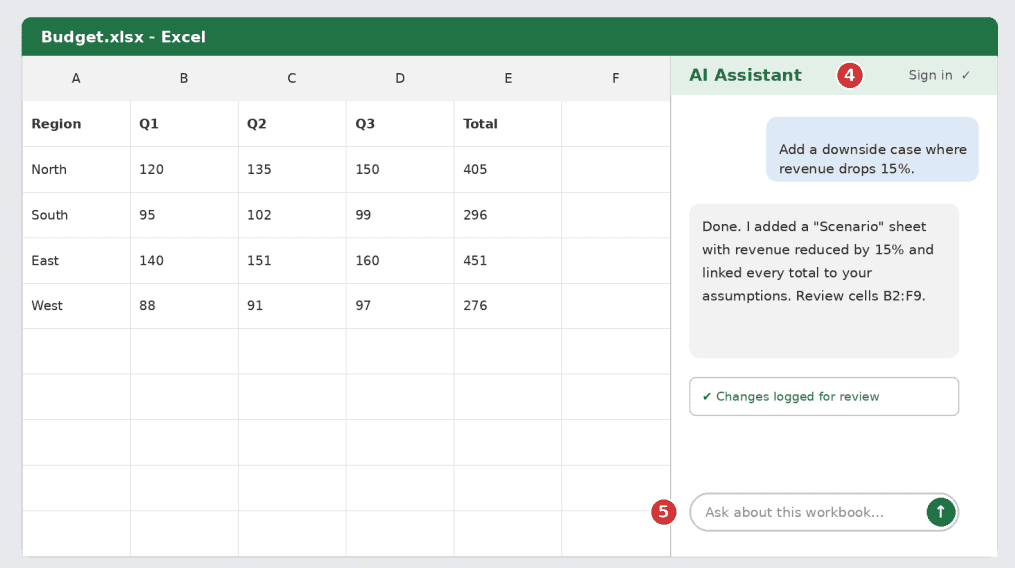
- Add a downside case where revenue drops 15%.
- Summarize this sheet and build a pivot table by region.
- Turn the data in this PDF into a clean table.
Tip: Use the Instructions field in the add-in settings. Preferences saved there apply to every Excel conversation.
How to install ChatGPT for Excel
OpenAI’s May 5, 2026 update made ChatGPT for Excel and Google Sheets generally available across all plans, powered by GPT-5.5. Plan limits and credits can change, so check OpenAI’s help page for your account.
- Open Excel (desktop or web) and go to Home → Add-ins.
- Search “ChatGPT” and pick the one published by OpenAI.
- Click Add, then open ChatGPT from the ribbon.
- Sign in with your OpenAI account.
Once signed in, the assistant opens as a side panel next to your workbook. Type a request in plain language and review what it changes.
How to use Claude and GPT models inside Microsoft Copilot
If you have a Microsoft 365 Copilot or Premium subscription, you can switch models without installing anything. Copilot in Excel works with Claude models from Anthropic and GPT models from OpenAI.
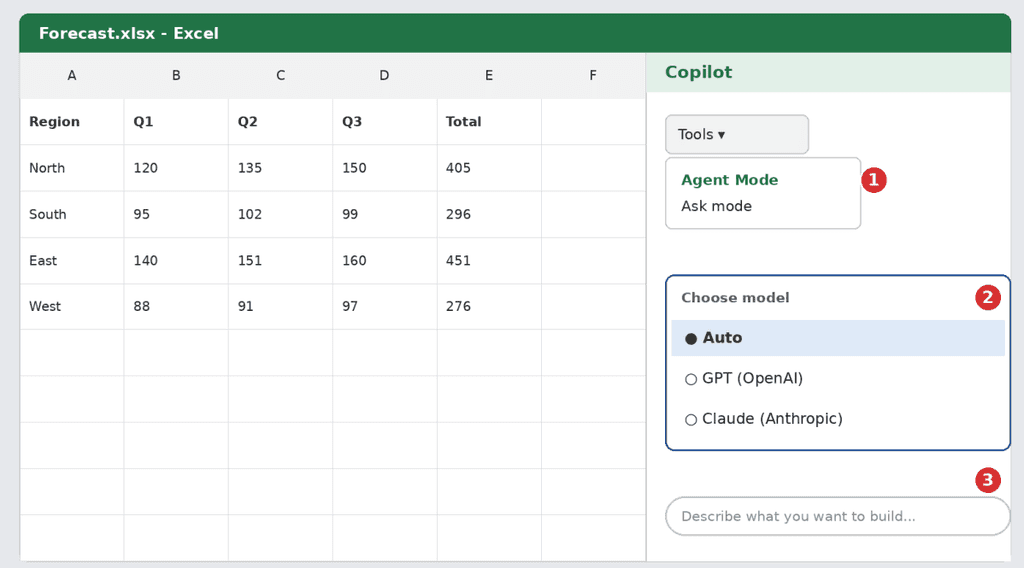
- Open Copilot: select Home → Copilot.
- Turn on Agent Mode: open the Tools menu and choose Agent Mode.
- Pick a model: use the model switcher, or choose Auto and let Copilot decide.
- Describe the task in the chat box.
Two catches. At work, your admin must first enable Anthropic as a Microsoft sub-processor to use Claude. And your model choice lasts only for the session, then reverts to the default.
Best practices and safety
- Verify everything. AI can make formula mistakes. Always check changes before relying on them.
- Use trusted files only. Anthropic’s guidance says to use Claude for Excel only with trusted spreadsheets, since hidden instructions in a file (prompt injection) are a real risk.
- Know where your data goes. The ChatGPT and Claude add-ins send cell data to their own cloud APIs, and may need separate admin approval in Microsoft 365.
- Be specific. Name the sheet, range, and desired output.
- Work on a copy of important workbooks.
FAQ
Is there an AI add-in for Excel?
Yes. Claude for Excel, ChatGPT for Excel, and Microsoft Copilot are the main ones.
Is Claude for Excel free?
The add-in is free to install, but it needs a Claude account. Anthropic’s docs say it is generally available on Pro, Max, Team, and Enterprise plans, so check your plan.
Does it work on Excel for web, Mac, and Windows?
Yes for all three. Anthropic’s docs list Excel on iPad and Android as unsupported.
Can I use Claude inside Copilot?
Yes, with a supported Microsoft 365 license, and an admin must enable Anthropic first at work.
Can I use ChatGPT or Claude in Google Sheets?
ChatGPT has a Sheets add-on. This guide covers Excel only.