Excel is one of the best tools for analyzing, reporting, and making decisions about data. One of its most popular features is the ability to look up information.
💡 Ready to test your Excel knowledge?
You can use both XLOOKUP and VLOOKUP to find a value in a range and get a related result returned. The VLOOKUP was replaced by the XLOOKUP in 2019. In short, XLOOKUP is a better and more flexible version of the VLOOKUP formula.
If you use Excel regularly, you need to know the main differences between XLOOKUP and VLOOKUP. In this article you will learn the key difference between XLOOKUP and VLOOKUP.
What Is VLOOKUP?
VLOOKUP, or Vertical Lookup, is a common Excel function that looks for a value in the first column of a table and returns a value from another column in the same row.
VLOOKUP Syntax
VLOOKUP(lookup_value, table_array, col_index_num, [range_lookup]
List of the inputs (arguments) in VLOOKUP:
- Lookup_value: the value you want to find.
- Table_array: the table or range where you are looking.
- Col_index_num: an integer that tells you which column of the return value you want.
- [Range_lookup]: An optional feature that lets you choose between TRUE and FALSE. TRUE means that it’s a close match (if there isn’t one, it returns the closest match), while FALSE means that it’s an exact match (if there isn’t one, it returns an error).
ALSO READ: How to Use VLOOKUP in Excel – A Step-by-Step Guide (With Examples)
What Is XLOOKUP?
XLOOKUP is a new Excel function that is designed for use in the place of VLOOKUP, HLOOKUP, and even some INDEX-MATCH combinations. It has more power, is easier to use, and is much more flexible.
XLOOKUP Syntax
XLOOKUP(lookup_value, lookup_array, return_array, [if_not_found], [match_mode], [search_mode])List of the inputs (arguments) in XLOOKUP:
- Lookup_value: the value you want to find.
- Lookup_array: the area you want to search for the matching value in.
- Return_array is the range that has the result you want to return.
- [if_not_found]: This is an optional feature that lets you change the text if no match is found.
- [match_mode]: An optional feature that lets you choose the type of match (exact match, next smaller item, etc.)
- [search_mode]: This is an optional feature that lets you choose how the search will work (for example, starting with the first item on a list or the last item on a list).
You may have seen that the XLOOKUP formula syntax has more optional inputs than the VLOOKUP formula syntax. This makes the formula much more flexible.
ALSO READ: How to Use XLOOKUP in Excel: Step-By-Step + Examples (2026)
Here are the Main Differences: XLOOKUP() vs. VLOOKUP()
Now let’s look at some of the main differences between the XLOOKUP() and VLOOKUP() functions.
1. Exact match mode
XLOOKUP() automatically looks for an exact match, but VLOOKUP() needs you to set FALSE for an exact match.

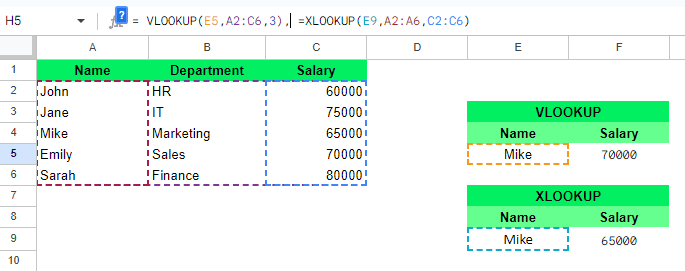
If you forgot to give the range_lookup value as the fourth argument to VLOOKUP(), it gave you the closest match, which is not what we wanted. On the other hand, XLOOKUP() always returns the exact match.
2. Lookup direction
VLOOKUP() can only look to the right of the first column in the table array that was chosen. XLOOKUP() can look for values in any direction, though.

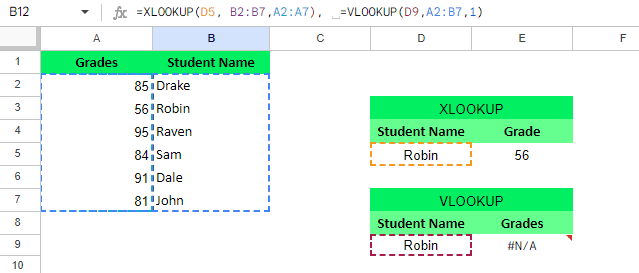
VLOOKUP() couldn’t find grades here because it can only look for data to the right of the lookup_value (the student’s name). XLOOKUP() finds Robin’s grades because it can search in both directions (left and right).
3. Array references
In VLOOKUP(), you need to use a single formula to define both the whole data range (table array) and the column number (column index) that contains the output you want (return column). XLOOKUP() can do more than this. You can set up separate arrays for the data you want to return and the lookup value.

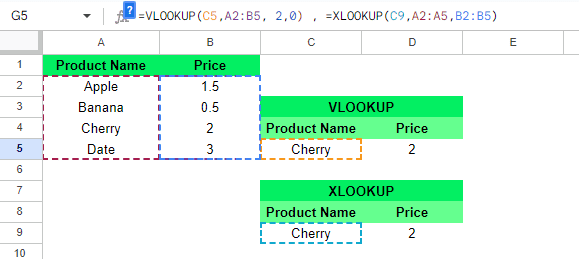
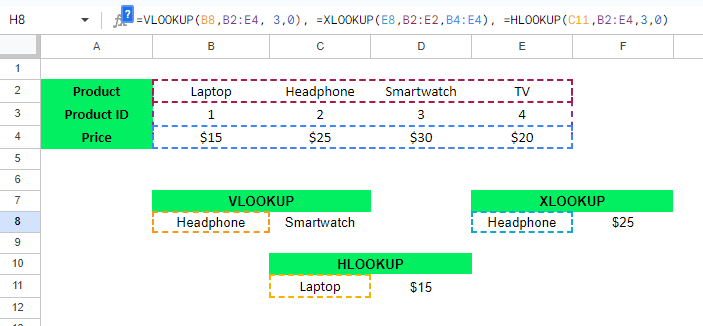
4. Horizontal lookup
Horizontal searches are not possible with VLOOKUP(). You would need to use HLOOKUP() instead for a horizontal search. You don’t have to use two separate functions for vertical and horizontal lookups because XLOOKUP() can do both.

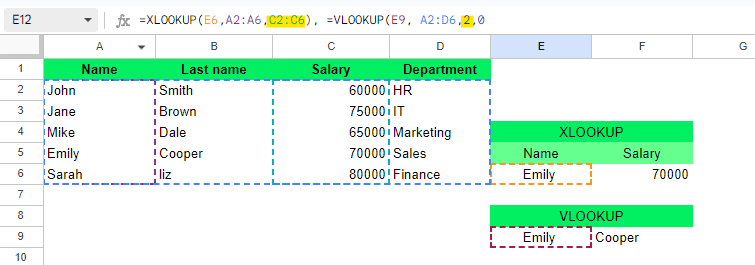
5. Handling column insertions/deletions
VLOOKUP() is affected by the changes to the columns because the column_index_num is written in stone. But changes to columns don’t affect XLOOKUP(). It keeps working even though the formula hasn’t been changed.

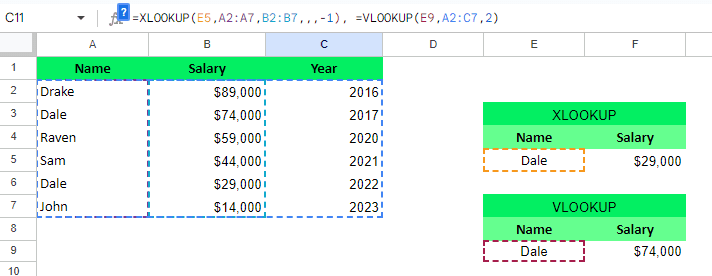
6. Sorting and searching
You can use VLOOKUP() to sort in ascending order, but this would be hard to use with data that isn’t already sorted. When you call XLOOKUP(), you can use the search_mode argument to search in either ascending or descending order.

VLOOKUP vs XLOOKUP: Comparison Table
| Feature | VLOOKUP | XLOOKUP |
|---|---|---|
| Lookup Direction | Left to Right only | Any direction |
| Column Reference | Column index number | Direct range |
| Default Match | Approximate | Exact |
| Error Handling | IFERROR needed | Built-in |
| Search Order | Top to bottom | Multiple options |
| Performance | Slower | Faster |
| Compatibility | All Excel versions | Newer versions only |
The Bottom Line
XLOOKUP() works better than VLOOKUP(), especially when working with big datasets or complicated lookup needs. It is a useful tool because it is flexible and can search in both directions, get multiple results, and adapt to changes in the data.
VLOOKUP() is still useful, especially for people who use older versions of Excel or who like a simpler way to do basic lookups.
Which option is best depends on your needs and the version of Excel you are using
💡 Ready to test your Excel knowledge?