
Whether you’re tracking monthly sales, comparing product prices, or analyzing investment returns, knowing how to calculate a percentage increase in Excel is one of the most useful skills you can have.
In this guide, I’ll walk you through 5 clear, practical methods—from simple formulas anyone can use to powerful automation with VBA and Office Scripts. Each method includes real-world examples so you can follow along.
Let’s dive in.
Why You Should Know How to Calculate Percentage Increases in Excel
This isn’t just a math exercise. Here’s where it makes a real difference in everyday work:
- Sales & revenue tracking: Quickly spot which periods drove the most growth.
- Investment analysis: Monitor returns and make smarter financial decisions.
- Education: Track student progress over time with test score comparisons.
- Stock market: Evaluate price changes before buying or selling.
- Budget management: Catch cost overruns before they spiral out of control.
- Website analytics: Measure traffic growth to fine-tune your marketing strategy.
- HR & payroll: Calculate fair salary increases based on real performance data.
- Health & fitness: Measure improvements in workouts or health metrics over time.
ALSO READ: How to Split Cells in Excel
Method 1: Calculate Percentage Increase Between Two Values
This is the go-to formula for comparing an old value to a new one. The new value must be greater than the old one for this to be a percentage increase (otherwise it’s a decrease).
A common real-world use: tracking the change in MSRP (manufacturer’s suggested retail price) for computer hardware over time.

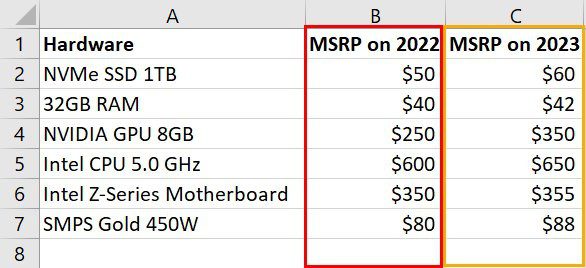
Sample data: Computer hardware with MSRP on 2022 (column B) and MSRP on 2023 (column C)
In the example above, column B holds the 2022 MSRPs and column C holds the updated 2023 prices. Column D is where we calculate the percentage increase.
Steps to Follow
- Add a column header called Percent Increase in column D.
- Click cell D2 and enter this formula, then press Enter:
=(C2-B2)/B2*100- Drag the fill handle down column D to apply the formula to all rows with data.

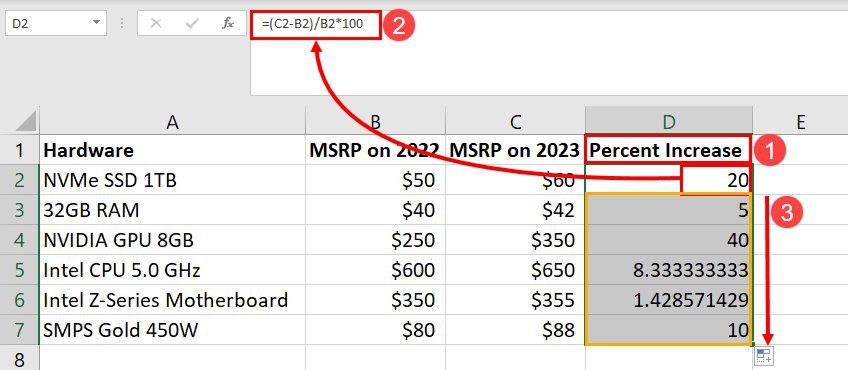
Entering the percentage increase formula =(C2-B2)/B2*100 in cell D2

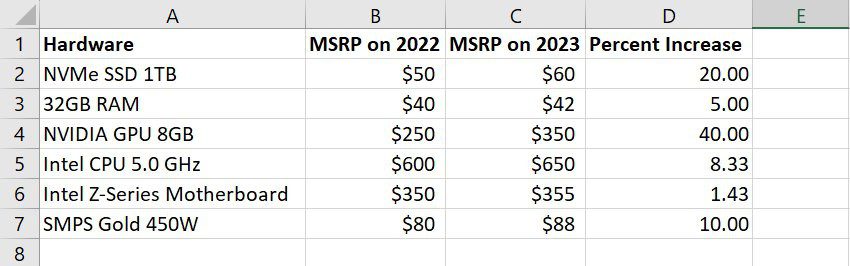
Final dataset with Percent Increase column filled after dragging the fill handle
Prefer to Show the % Symbol?
Use this version of the formula instead — it gives a decimal result (e.g., 0.20 instead of 20):
=(C2-B2)/B2
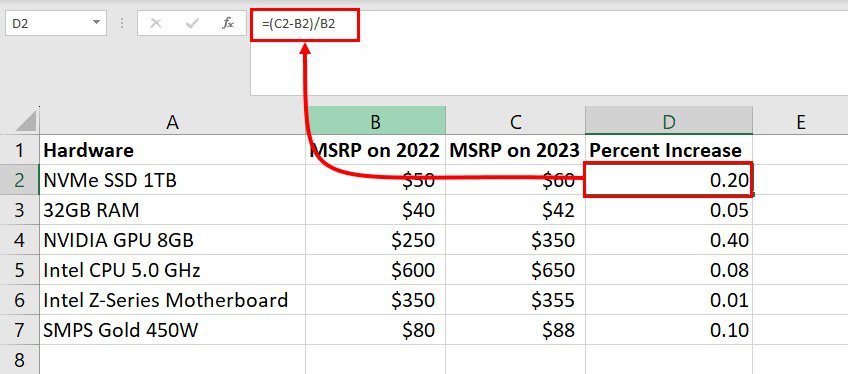
Decimal results using =(C2-B2)/B2 formula before percentage formatting
To convert decimals to proper percentages, you have two options:
- Option 1: Select column D cells → press Ctrl+1 → choose Percentage in the Format Cells dialog → click OK.

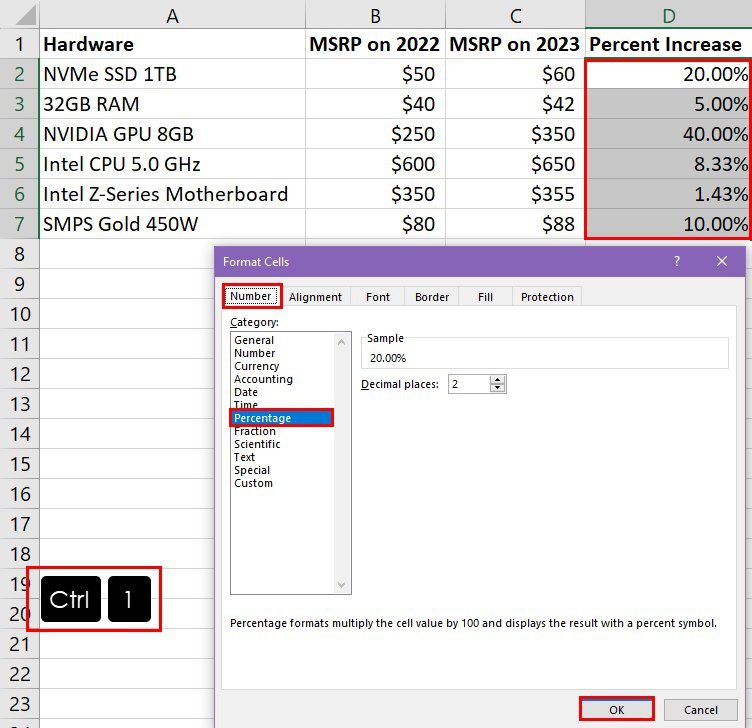
Format Cells dialog — select Percentage category (Ctrl+1) to convert decimals
- Option 2: Go to the Home tab → Number group → click the General dropdown → select Percentage.

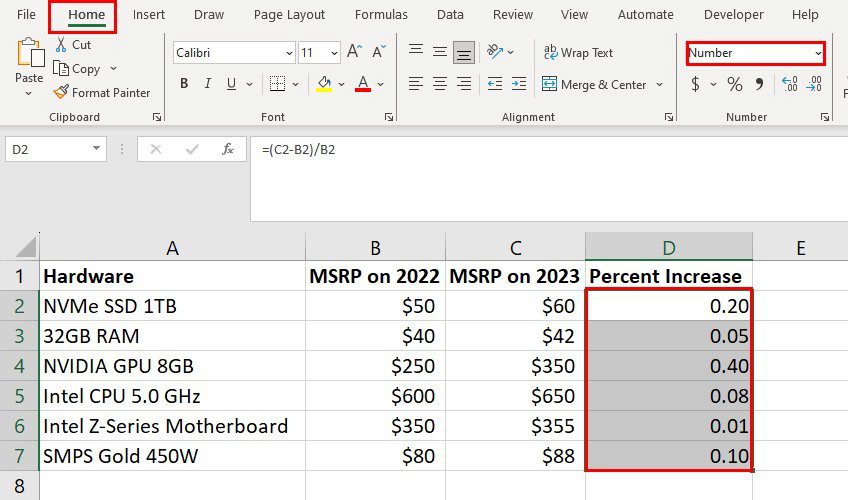
Home tab → Number group → General dropdown for quick percentage formatting

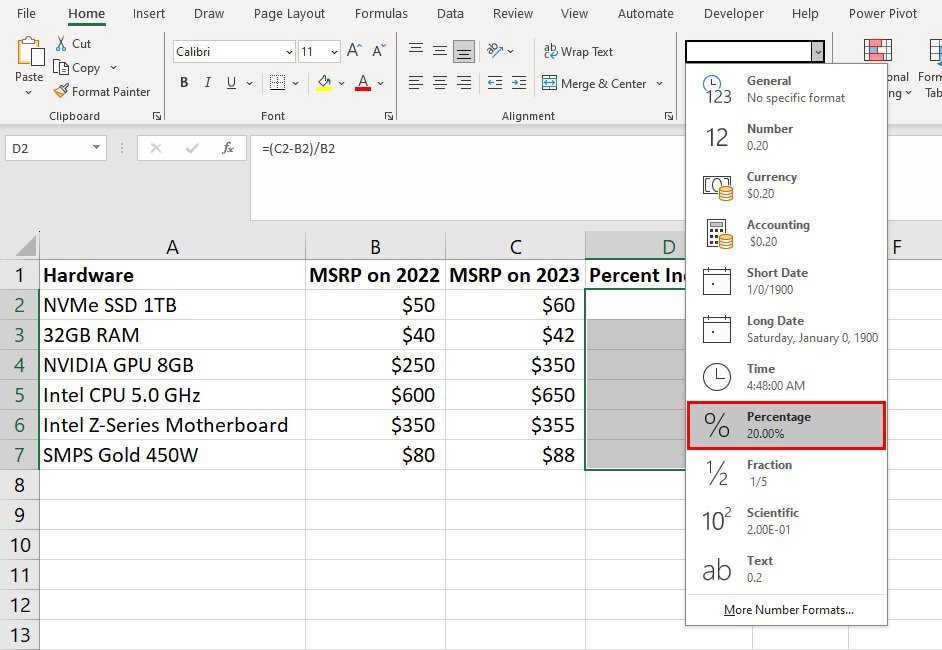
Selecting Percentage from the General drop-down menu in the Number group
ALSO READ: How to Use Excel Data Tables to Analyze Multiple Scenarios at Once
Method 2: Calculate the New Value After a Percentage Increase
Sometimes you already know the old price and the desired percentage increase, and you need to calculate what the new price should be. This is perfect for updating a pricing strategy.
For example: You have last year’s MSRP and want to apply a specific markup to arrive at a competitive new price.

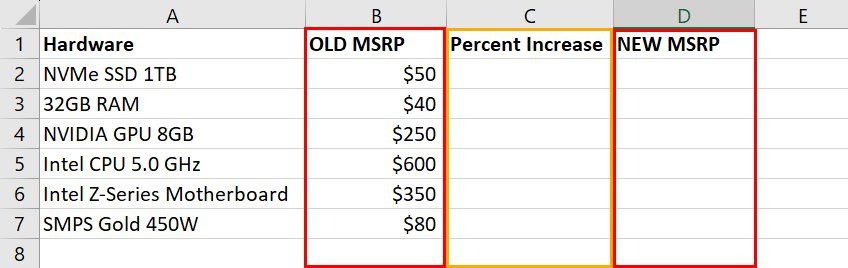
Dataset with Old MSRP (B), Percent Increase (C), and New MSRP (D) columns
Steps to Follow
- Set up three columns: Old MSRP (B), Percent Increase (C), and New MSRP (D).
- Fill column C with your desired profit percentages.

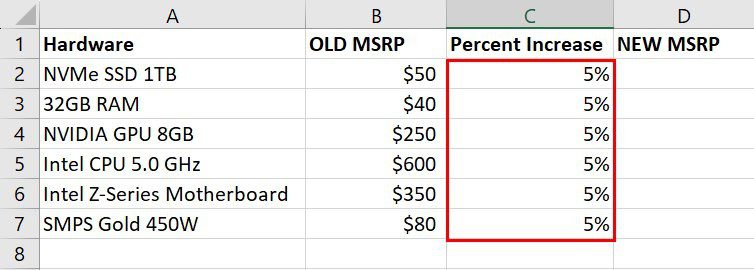
Percent Increase column populated with desired profit percentages
- In cell D2, enter this formula and press Enter:
=B2*(1+C2)
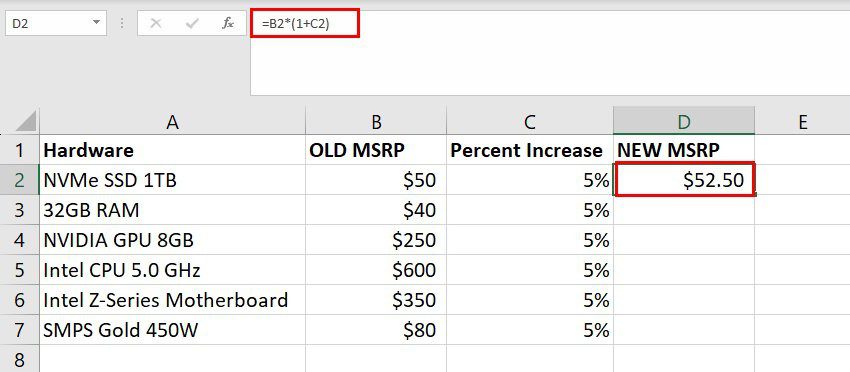
Entering formula =B2*(1+C2) in cell D2 under the New MSRP column
- Copy the formula down column D for all remaining rows.

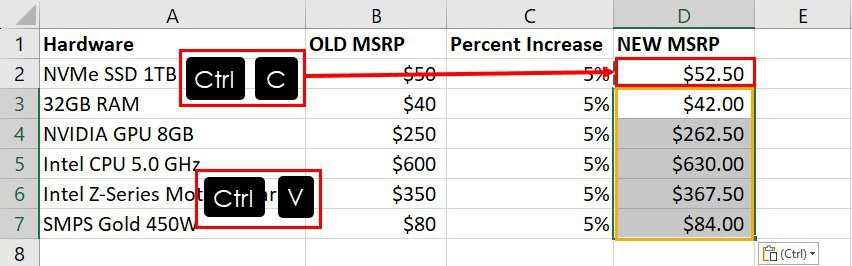
Copying the formula down column D to calculate all New MSRP values
Since the formula uses relative cell references, you can update percentages in column C any time and the new prices will recalculate instantly.
Method 3: Calculate Percentage Increase From Negative to Positive Values
In sales or project reporting, you’ll sometimes see values shift from a loss (negative) in one period to a profit (positive) in the next. Standard percentage formulas break down here — so you need a slightly different approach.

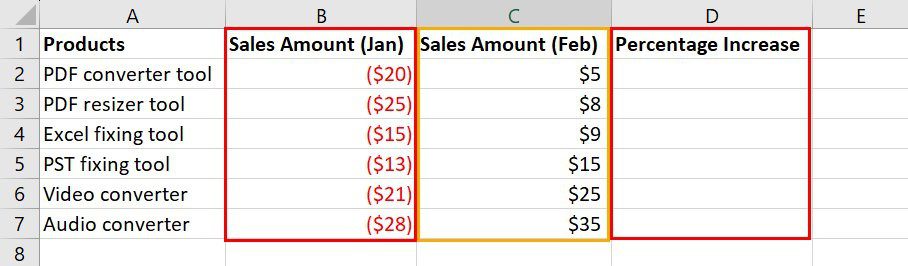
Sales data with negative January values (losses) and positive February values (profit)
Steps to Follow
- Set up your data: Column B for previous month sales (negative values), column C for current month (positive values), column D for Percentage Increase.
- Enter this formula in D2 and press Enter:
=ABS((C2-B2)/B2)
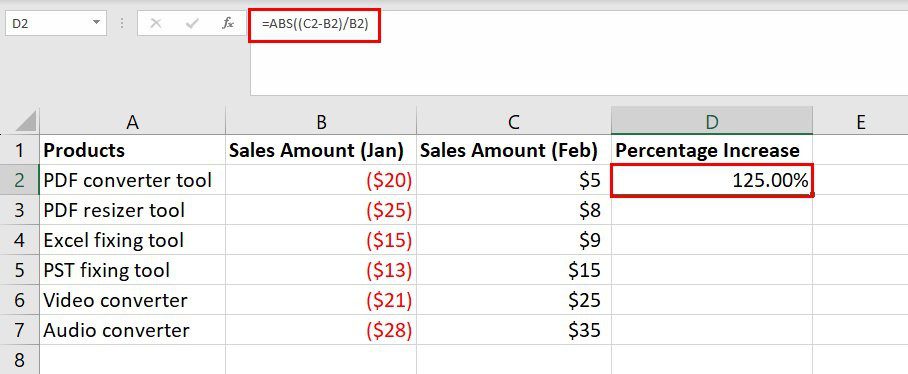
Entering =ABS((C2-B2)/B2) in D2 for negative-to-positive percentage increase
- Drag the fill handle from D2 down to the last row of data.

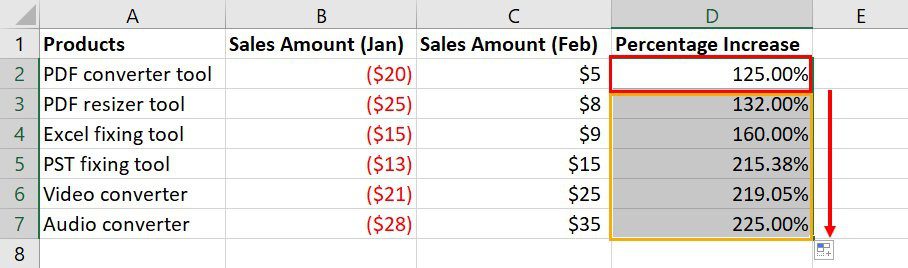
Dragging fill handle from D2 to D7 to apply the ABS formula to all rows
The ABS function ensures the result is always positive, even when the base value is negative — giving you a true percentage improvement figure.
Method 4: Automate It With Excel VBA
If you’re running this calculation regularly on large datasets, automating it with a VBA macro will save you significant time. Here’s a script that handles negative-to-positive percentage increases automatically.

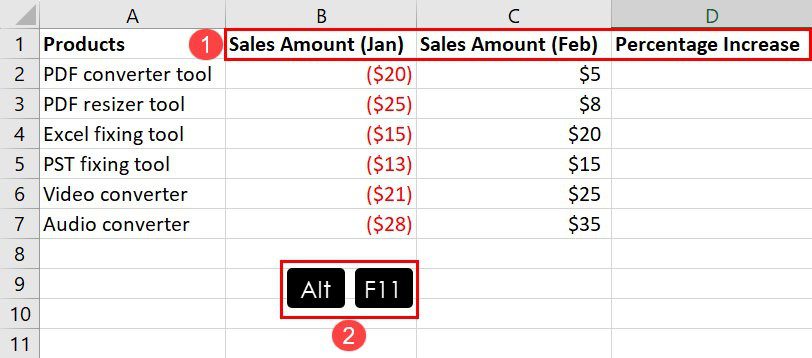
Dataset structure for the VBA script: Sales Amount (Jan/Feb) with empty Percentage Increase column
How to Set It Up
- Open your worksheet with the sales data.
- Press Alt+F11 to open the VBA Editor.
- Click Insert → Module to create a blank module.
- Paste the following script into the module:
Sub CalculatePercentageIncrease()

    Dim ws As Worksheet

    Dim lastRow As Long

    Dim i As Long

    Set ws = ThisWorkbook.Sheets("Sheet1")

    lastRow = ws.Cells(ws.Rows.Count, "B").End(xlUp).Row

    For i = 2 To lastRow

        ws.Cells(i, "D").Value = ((ws.Cells(i, "C").Value - ws.Cells(i, "B").Value) / Abs(ws.Cells(i, "B").Value))

        ws.Cells(i, "D").NumberFormat = "0.00%"

    Next i

End Sub
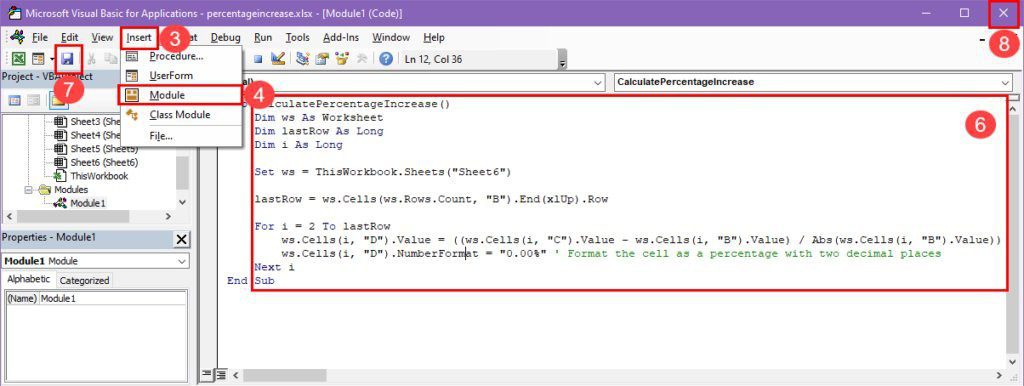
VBA Editor with the CalculatePercentageIncrease script pasted into the module
- Click Save, then close the VBA Editor.
- Press Alt+F8, select CalculatePercentageIncrease, and click Run.

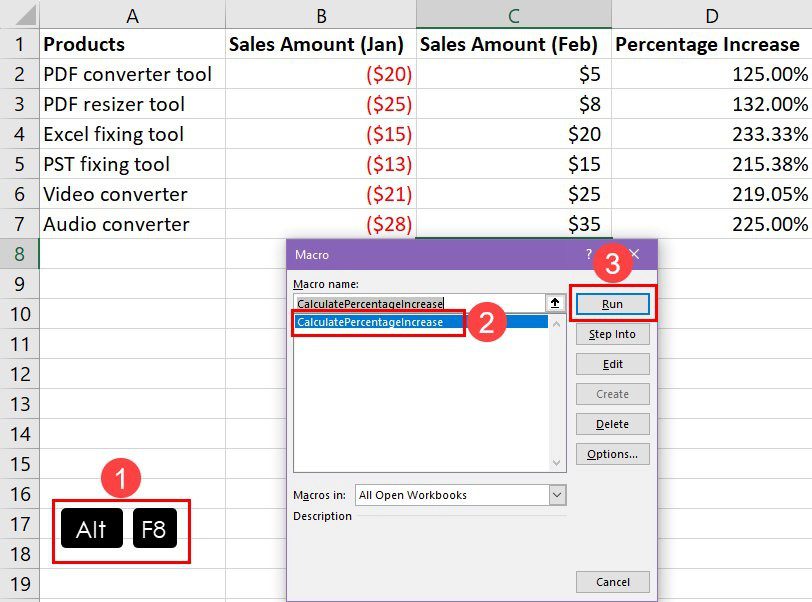
Running the macro via Alt+F8—selecting CalculatePercentageIncrease and clicking Run
Customization Tips
- Replace “Sheet1” with your actual worksheet name.
- Column B = previous values. Column C = new values. Column D = output. Change letters as needed.
Method 5: Use Office Scripts (Excel for the Web & Microsoft 365)
If you’re working in Excel for the Web or want to integrate your workflow with Power Automate, Office Scripts is the way to go. Unlike VBA, it works in browser-based Excel.
Here’s a script for calculating percentage increase from negative-to-positive or positive-to-positive values:
function main(workbook: ExcelScript.Workbook) {

    let selectedSheet = workbook.getActiveWorksheet();

    selectedSheet.getRange("D2").setFormulaLocal("=ABS((C2-B2)/B2)");

    selectedSheet.getRange("D3:D7").copyFrom(selectedSheet.getRange("D2"),

        ExcelScript.RangeCopyType.all, false, false);

    selectedSheet.getRange("D2:D7").setNumberFormatLocal("0.00%");

}
How to Run It
- Go to the Automate tab and click New Script.
- Paste the script into the Code Editor.
- Click Save Script, then click Run.

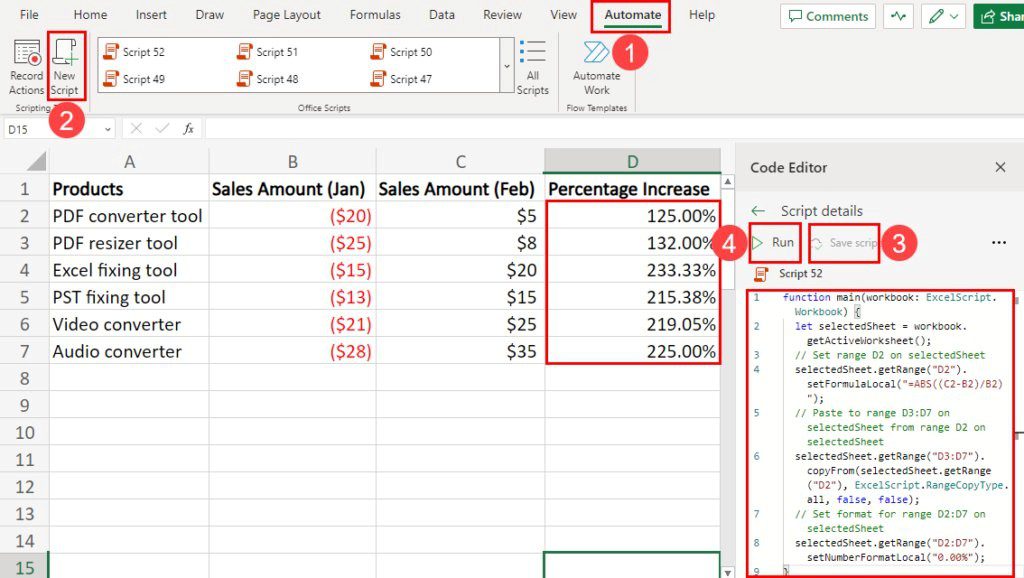
Office Scripts editor in Excel—Automate tab with the script running and results in column D
⚠️ Note: Office Scripts requires a Microsoft 365 Business Standard subscription or higher. If you don’t see the Automate tab, check with your IT admin.
Which Method Should You Use?
| Method | Best For | Skill Level |
| =(C2-B2)/B2*100 | Quick two-value comparisons | Beginner |
| =B2*(1+C2) | Calculating new value from % increase | Beginner |
| =ABS((C2-B2)/B2) | Negative-to-positive changes | Intermediate |
| VBA Macro | Automating repetitive calculations | Advanced |
| Office Scripts | Excel for Web / Power Automate | Advanced |
Frequently Asked Questions
What is the formula for percentage increase in Excel?
The most common formula is =(New Value – Old Value) / Old Value * 100. Omit the *100 if you prefer to format the cell as a percentage using Excel’s built-in format.
How do I calculate a percentage increase from a negative number?
Use the ABS function: =ABS((C2-B2)/B2). This handles negative base values correctly by using the absolute value as the denominator.
What’s the difference between VBA and Office Scripts?
VBA works in the Excel desktop app and is great for local automation. Office Scripts works in Excel for the Web and integrates with Power Automate. Office Scripts requires a higher-tier Microsoft 365 subscription.
Why is my percentage formula showing a decimal instead of a percentage?
You’re likely using =(C2-B2)/B2 without the *100. Either add *100 to the formula, or keep it as-is and format the cell as Percentage using Ctrl+1 or the Number group on the Home tab.
Final Thoughts
Calculating percentage increases in Excel doesn’t have to be complicated. Whether you’re a beginner using a basic formula or a power user automating reports with VBA, there’s a method here that fits your workflow.
Start with Method 1 if you’re new to Excel. As your datasets grow, explore the automation options in Methods 4 and 5 to save time and eliminate manual errors.
Have a question or a tip to share? Drop a comment below—we’d love to hear from you!